Schedule and RSVP
Know Who Is Coming Before You Plan the Session
Create trainings, games and meetings in seconds. Players answer with one tap. You see the number, not a wall of emoji.
Free to start · No sales call · Basketball · Football · Volleyball
What it is
Schedule and RSVP
RosterUp turns “who is coming on Thursday?” into a number you can see. Coaches create trainings, games and meetings in seconds; players answer Going, Maybe or No with one tap and can flag that they are bringing a guest. Every team member gets the same schedule in list, week or month view, and one tap adds an event to their own phone calendar.
Attendance is the single most expensive unknown in amateur sport. A coach who does not know whether eight or fourteen players are coming cannot plan a session. A player who missed one message in a chat thread turns up at the wrong gym. The usual fix – asking everyone to reply with a thumbs up – produces a wall of emoji that nobody can count.
RosterUp replaces that with a structured event. Each event has a type, a title, a date, a start and end time, a location, an optional map link and optional notes. Each event carries its own RSVP state per player, updated live. The coach sees the count without scrolling anything.
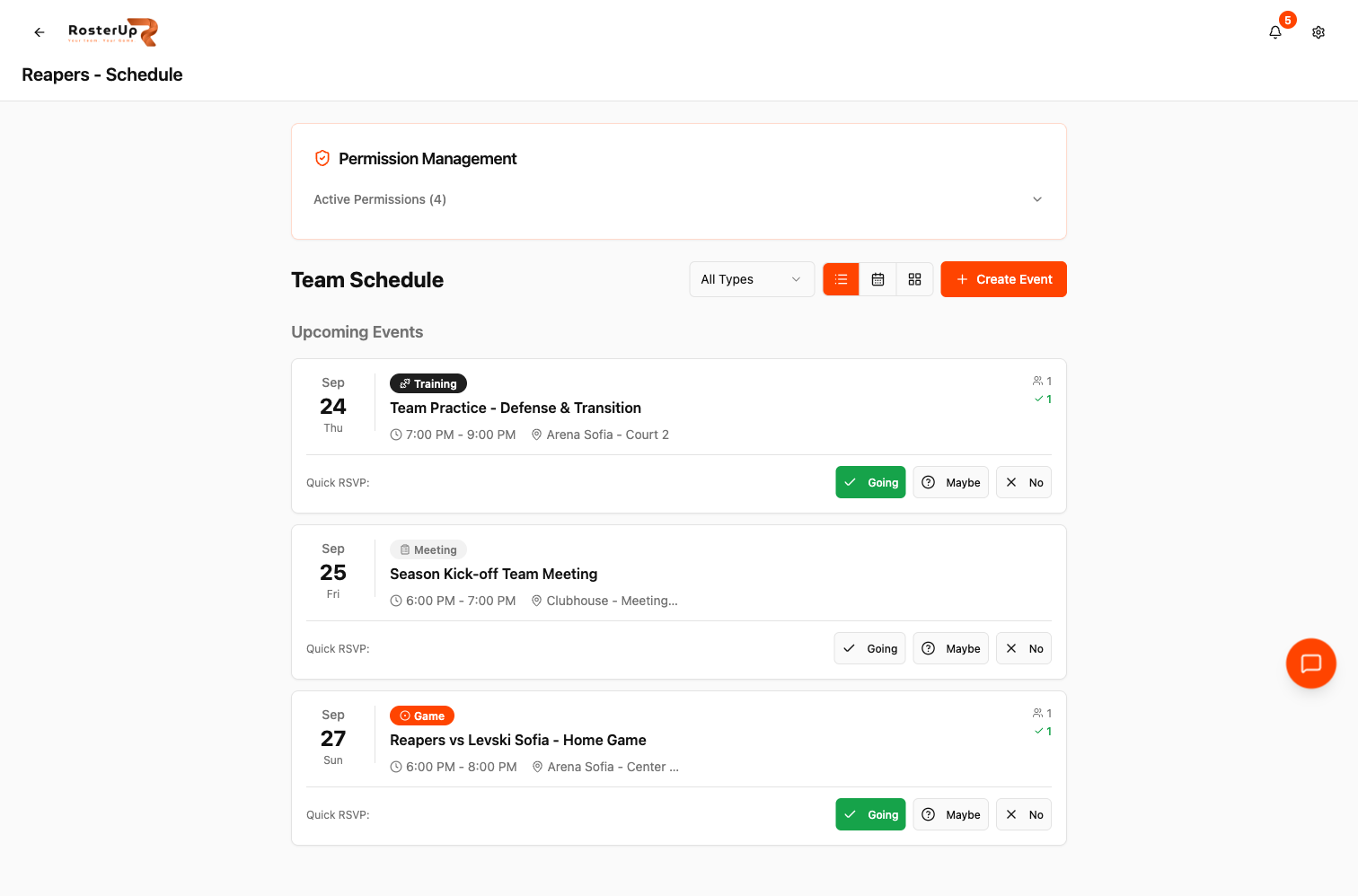
Training, games and meetings in one list, with answers you can count.
How it works
From setup to match day, step by step.
01
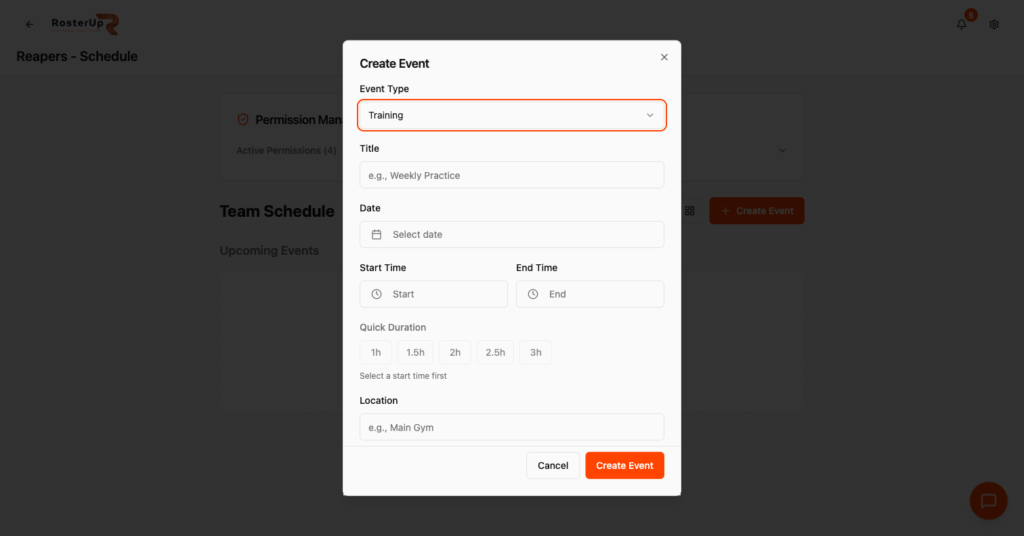
A coach opens Team Schedule and clicks Create Event. They pick the event type – Training, Game or Meeting – then give it a title, a date and a start time. Quick Duration buttons (1h, 1.5h, 2h, 2.5h, 3h) set the end time in one click rather than making the coach do the arithmetic. They add a location such as “Arena Sofia – Court 2”, optionally paste a map link, and optionally add notes like “bring both jerseys”. A Repeat weekly checkbox creates four events at once, which is how most teams set up a month of training.
02
The event appears at the top of Upcoming Events with a date badge, a coloured type badge, the time window and the location. Underneath sits a Quick RSVP row: Going, Maybe, No. A player taps once and it is recorded; RSVP counts on the card update in real time for everyone looking at the schedule.
03
Opening the event shows the full detail sheet: the full date, the time window, the location, the organiser’s notes, Add to Calendar, an Announce button, the player’s own response controls including a Bringing a guest (+1) option, and an Attendance panel listing exactly who is going.
04
Coaches switch between list view, week view and month view with a single control, and filter by event type with the All Types dropdown. The month view pairs a calendar grid with a day panel so a coach can click any date and see that day’s events.
What you get
Everything in Schedule and RSVP.
Three event types
Training, Game and Meeting each carry their own badge colour and icon, so a month of events is readable at a glance and can be filtered down to just games.
Quick RSVP
Going, Maybe and No, answered from the schedule list without opening anything. On mobile the same control reads Yes / Maybe / No and is sized for thumbs.
Guest tracking
A player can mark that they are bringing a guest, and the count includes that extra person. For teams that run open trainings, this is the difference between booking one court and two.
Live attendance list
The event detail sheet names everyone who has responded Going, so a coach can see which five are missing rather than only that five are missing.
Add to Calendar
One tap builds a calendar event pre-filled with the title, the exact start and end times, the location and the notes, ready to save into Google Calendar or any other calendar app.
Announce from an event
The Announce button turns any event into a team announcement with the title, date, time and venue already written, set to High priority and pinned, and set to auto-expire the day after the event. The announcement carries a quick RSVP button, so a player can answer straight from the announcement.
Repeat weekly
One checkbox creates four weekly copies of the event.
My Schedule
A player who belongs to several teams sees every commitment in one place at My Schedule, filtered by team and by event type.
Attendance statistics
Each account accumulates an attendance record – total events, attendance rate, Going and Not Going counts – with a progress bar and a “Reliable Player” badge. Coaches get an honest picture of who actually turns up.
A closer look
Screen by screen.
Captured from the live RosterUp app.
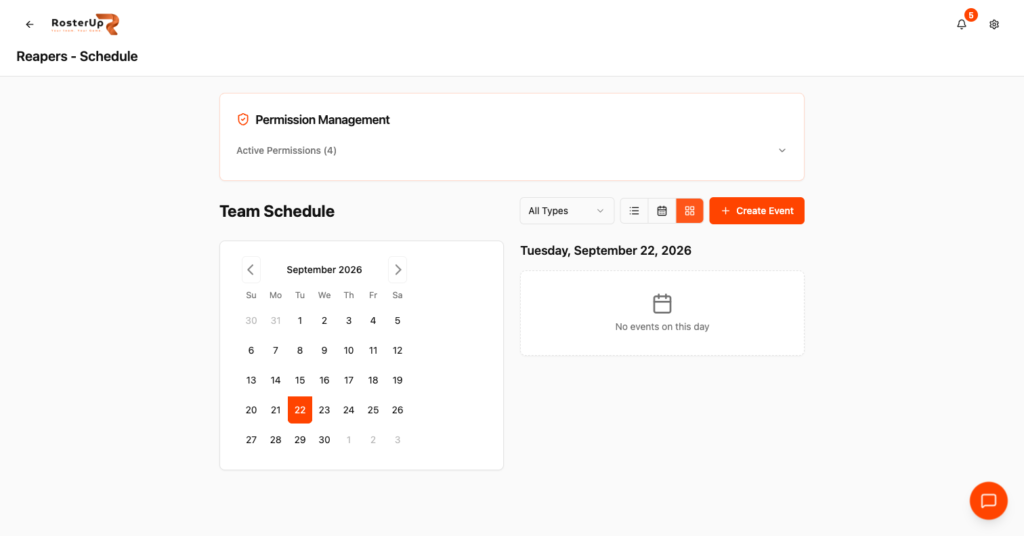
Plan the month, then click any day to see it.
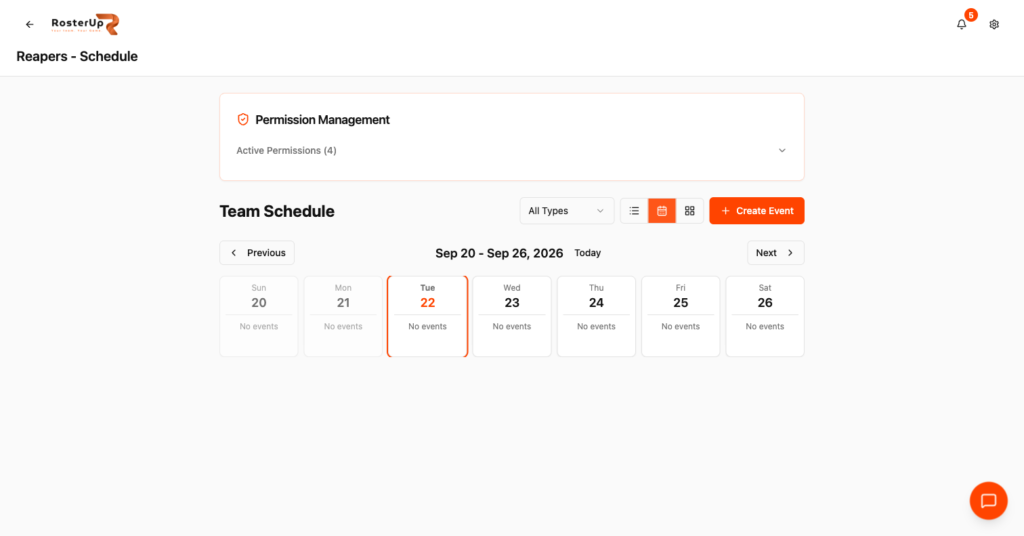
Or zoom into the week you are actually planning.
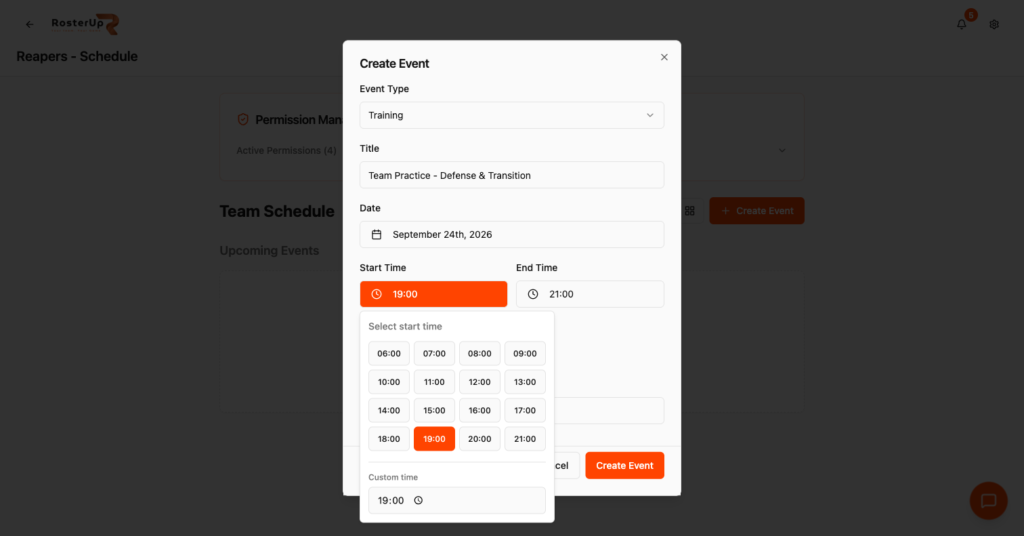
Pick a type, a time and a place. Quick Duration does the arithmetic.
Everything an event needs, nothing it does not.
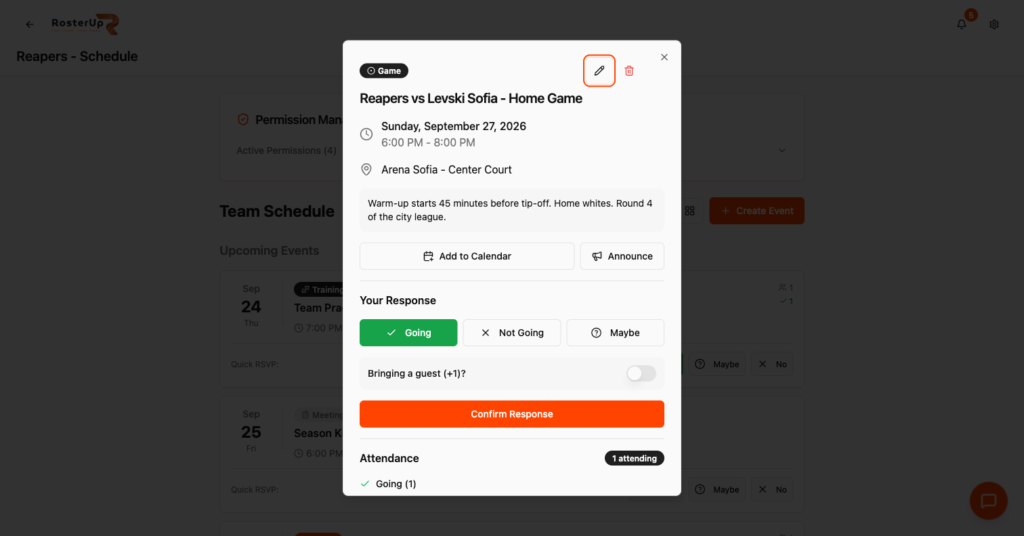
Answer, bring a guest, and see exactly who else is in.
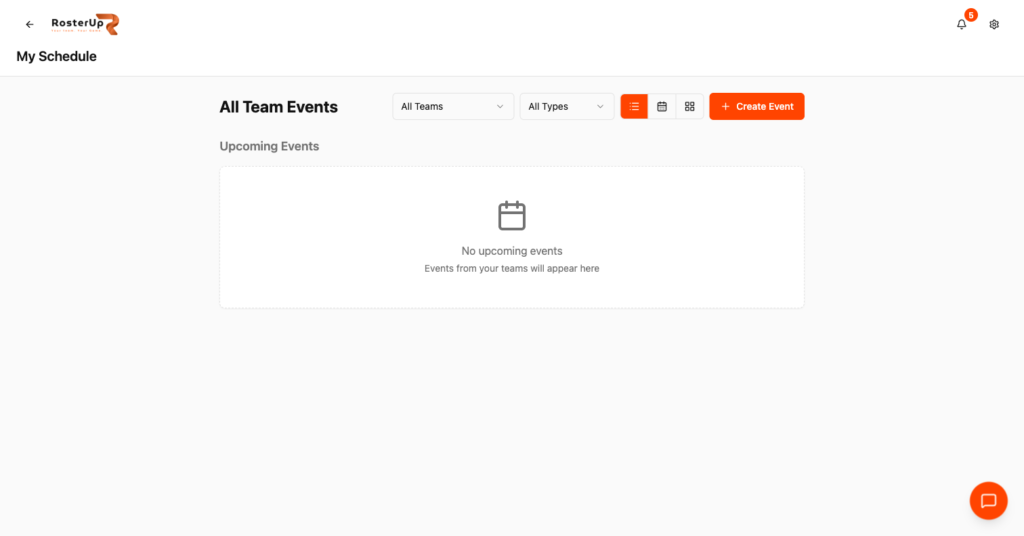
Play for two teams? Both schedules, one page.
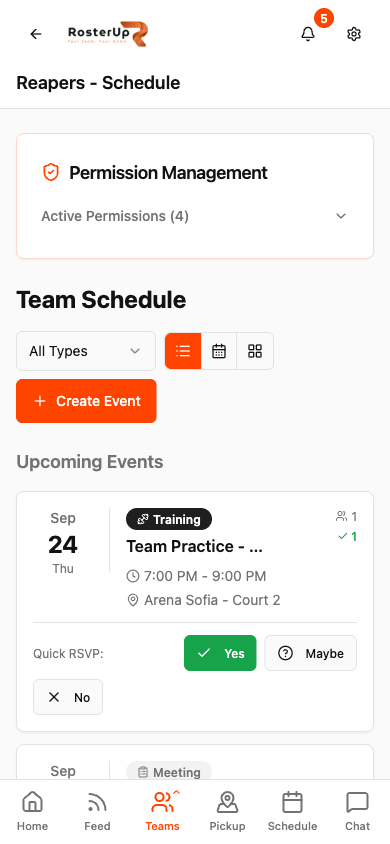
Players answer from the bus, not from a laptop. — ## Gaps to re-capture later – My Schedule with real cross-team events (07 is an empty state). – Event edit dialog was not opened. NEEDS VERIFICATION. – The event type filter in use (filtered to Game only) would make a good supporting image.
Who it helps
Both sides of the team sheet.
For coaches and managers
You plan the session you can actually run. If nine players are confirmed by Wednesday, you plan a nine-player session instead of arriving with a five-on-five plan and improvising. You stop re-posting the same venue and time into a chat thread. And because the schedule is a real calendar rather than a stream of messages, a player who joins the squad in November can scroll back and see what the team has been doing.
Wherever you are
Built for the sideline, shared with a link.
On the phone
The schedule is the page players open most, and it is built for the phone. Event cards stack vertically with the date badge on the left and the RSVP buttons on a full-width row underneath, each button a large tap target. The view switcher and Create Event button sit at the top, and the persistent bottom navigation keeps a Schedule tab one tap away from anywhere in the app.
Sharing and public access
Team schedules are visible to team members rather than the open web. The sharing route is Add to Calendar, which pushes a specific event into a player’s own calendar, and the Announce flow, which pushes an event into the team’s announcement feed with a built-in RSVP button.
In practice
How real teams use it.
A basketball coach sets up four Thursday practices at once with Repeat weekly, then checks Friday morning how many are confirmed for the first one.
A football manager creates a match event with a Google Maps link to an away ground so nobody gets lost.
A volleyball team runs a pre-season meeting as a Meeting event and tracks who attended.
A youth academy coach uses attendance statistics at the end of the season to talk to parents about consistency.
A player in two teams uses My Schedule to spot that Saturday’s game and Saturday’s training clash.
Why not just a group chat and a spreadsheet?
In WhatsApp or Viber, an event is a message. It scrolls away, replies are unstructured text, and counting them is manual. A shared spreadsheet fixes the counting but nobody opens it on the way to training, and it sends no reminders. A calendar invite handles the date but knows nothing about a squad, a jersey number or a guest.
RosterUp keeps the event, the responses and the roster in the same object, then pushes the event into the tools people already use through Add to Calendar.
Questions
Frequently asked.
What types of events can I create?
Training, Game and Meeting. Each has its own badge so a month of events stays readable, and you can filter the schedule by type.
How do players confirm attendance?
With a single tap on Going, Maybe or No, either from the schedule list or from the event detail sheet. Responses update live for everyone.
Can a player bring someone who is not in the squad?
Yes. The event sheet has a “Bringing a guest (+1)” option and the attendance count includes that extra person.
Can I set up a whole month of training at once?
Yes. Tick “Repeat weekly” when creating the event and RosterUp creates four weekly events.
Does RosterUp sync with Google Calendar?
Each event has an Add to Calendar button that opens a pre-filled calendar event with the title, start and end time, location and notes. Save it into Google Calendar or any calendar app you use.
Can I see exactly who is coming, not just how many?
Yes. The event detail sheet lists every player who has answered Going.
Can a player who is not a coach create events?
Yes, if you grant them the Create Events permission on the team’s Permissions page.
I coach two teams. Can I see both schedules together?
My Schedule shows events from every team you belong to, with filters for team and event type.
Does RosterUp track how often a player turns up?
Yes. Your account carries total events, attendance rate, Going and Not Going counts, and a “Reliable Player” badge.
Can I change the length of a session after creating it?
Yes, events can be edited after creation.
Next
Works with the rest of RosterUp.
Announcements
Pinned, prioritised messages that sit at the top of your team page until they stop mattering.
Read more
Team Management
One team profile that holds your players, your staff and exactly who is allowed to do what.
Read more
Player Profiles
One sports profile for every team you play for, with the record of how often you turn up.
Read more
Get started
Know Who Is Coming Before You Plan the Session
Free to start. No sales call. Create your team and bring the squad in today.