Player Profiles
One Profile, Every Team You Play For
Your club team, your five-a-side and your Wednesday pickup run in one place – with the teams you follow and the record of how often you turn up.
Free to start · No sales call · Basketball · Football · Volleyball
What it is
Player Profiles and Social
Every RosterUp account is a sports profile. It shows your teams and the role you hold in each, the posts you have shared, your friends, and your attendance record. You can add friends, follow teams you do not play for, and carry one identity across every squad and pickup game you are part of.
A player in amateur sport rarely belongs to one thing. They play for a club team, turn out for a work five-a-side, and join a pickup run on Wednesdays. In most tools that means three separate group chats and no continuity at all – nothing that says who this person is as a player.
RosterUp gives them one profile. It travels with them into every team they join, every pickup game they sign up for and every post they make. For a coach looking at a join request, it is a way to see who is actually asking. For a player, it is the only place their sport life is gathered in one view.
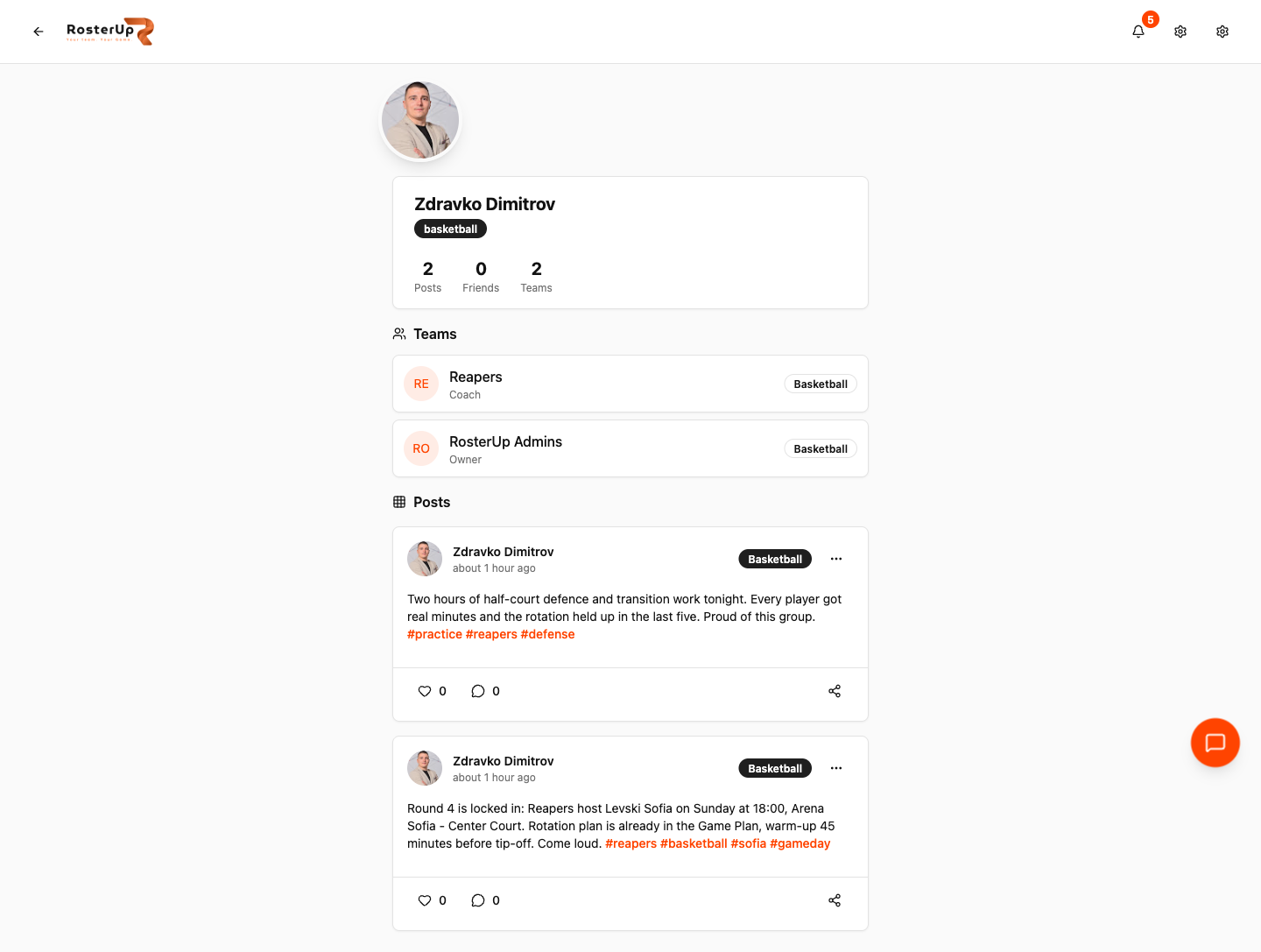
Every team you play for, and everything you have shared, in one place.
How it works
From setup to match day, step by step.
01
Tapping a player’s name anywhere in the app – on a roster card, on a feed post, in a comment – opens their profile.
02
The profile shows a cover image and avatar, the player’s name, their primary sport as a tag, and three counts: Posts, Friends and Teams. Below sit two blocks. Teams lists every team the player belongs to with their role – Coach, Owner, Player – and the team’s sport. Posts shows everything they have shared to the feed, with the same like, comment and share controls as the feed itself.
03
Friend requests are managed at Friends, which has three tabs: Requests for incoming, Friends for accepted, and Sent for outgoing. Teams are followed rather than friended: the team directory and team pages carry a Follow control, and followed teams’ posts appear in the Following mode of the feed.
04
Your own profile is edited in Settings, which holds the cover photo, avatar, name, bio, country, phone number and the switch controlling whether teammates can see that number.
What you get
Everything in Player Profiles.
One identity across teams
The same profile in every team, every pickup game and every post.
Role visibility
The Teams block shows the role held in each team, so a coach reviewing a join request can see whether this person coaches elsewhere.
Posts on the profile
A player’s feed history is their season record.
Friends
Requests, accepted friends and sent requests in one place, with an Add Friend control on profiles.
Follow teams
Follow a club without joining it. Their posts appear in your Following feed.
Following feed mode
Switch the feed from everything to just friends and followed teams.
Attendance record
The account carries total events, attendance rate, Going and Not Going counts and a Reliable Player badge – visible in Settings.
Privacy control over phone number
A phone number can be stored and hidden from teammates with a single switch.
Profile in context
Preview cards for users and teams appear inline in the feed, so you can see who somebody is without leaving the stream.
A closer look
Screen by screen.
Captured from the live RosterUp app.
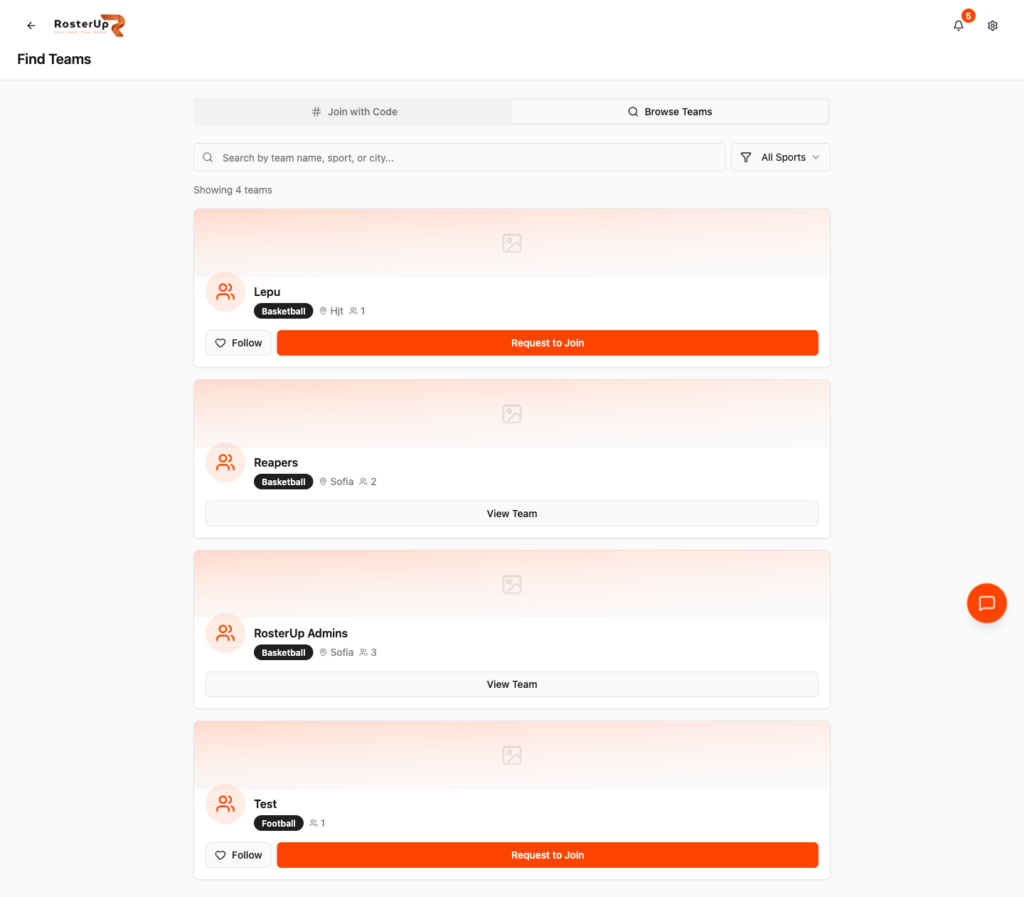
Follow a club without joining it. — ## Gaps to re-capture later – The Friends page with real content. The audit found it empty (“No pending requests”), so the Requests / Friends / Sent tabs are documented but not shown. – The Add Friend control on a profile. – A profile with a cover image set. The captured profile has no cover photo. – The user and team preview cards that appear inline in the feed. – Mobile profile view.
Who it helps
Both sides of the team sheet.
For coaches and managers
When somebody requests to join your team, you can look at them. Which other teams do they play for, what do they post, how long have they been around. That is not a background check, but it is a great deal more than a name in a chat group.
Following is also useful for coaches: you can follow the other teams in your league or your city and see what they are doing without any formal relationship.
For players
Your sport life stops being scattered. One profile holds every team you belong to, every game you have posted about, and a record of how often you actually turn up. For a player looking for a new team, that profile is what a coach will look at.
Wherever you are
Built for the sideline, shared with a link.
On the phone
Profiles are a single stacked column on mobile: avatar and counts at the top, teams, then posts. Friend requests are a three-tab page with full-width cards and large accept and decline controls. Every profile is reached by tapping a name, which means profiles are never more than one tap from wherever you saw the person.
Sharing and public access
Profiles are visible to signed-in RosterUp users. They are not public web pages, which is deliberate for a product that has youth players on it. Posts made to the feed are visible to other RosterUp users through the feed, the profile and the country, sport and hashtag filters.
In practice
How real teams use it.
A coach reviews a join request and checks which other teams the player belongs to.
A player moving to a new city follows three local clubs before deciding which to approach.
A parent follows their child’s club to see posts without joining the squad.
A player uses their profile and attendance record when asking to move up an age group.
Two players who met at a pickup game add each other as friends and see each other’s games in the Following feed.
Why not just a group chat and a spreadsheet?
A phone contact is a number. A chat group membership disappears when you leave the group. A general social profile says nothing about what position you play or which teams you turn out for.
The value here is continuity: the profile is the thread that connects a player’s club team, their pickup games and their posts, and it is the thing a coach actually looks at before approving a join request.
Questions
Frequently asked.
What is on a RosterUp profile?
A cover image and avatar, your name, your primary sport, counts for posts, friends and teams, the list of teams you belong to with your role in each, and your posts.
Can I be in more than one team?
Yes, with a different role in each. The profile shows all of them.
What is the difference between a friend and a follow?
You add people as friends and follow teams. Both feed the Following mode of the feed.
Can I follow a team without joining it?
Yes. Public teams have a Follow control, so parents, fans and prospective players can see a club’s posts without being on the roster.
Are profiles public on the internet?
No. Profiles are visible to signed-in RosterUp users, not to the open web.
Is my phone number visible to my teammates?
Only if you allow it. Settings has a “Show phone to teammates” switch.
Does my profile show how often I turn up?
Your account carries an attendance record – total events, attendance rate, Going and Not Going counts and a Reliable Player badge – which you can see in Settings.
Can I change my primary sport?
Your profile carries a sport tag alongside your teams and posts.
How do I add a friend?
Open their profile and use the Add Friend control. Requests are managed on the Friends page under Requests, Friends and Sent.
Do I need a team to have a profile?
No. You can create a profile, follow teams and join pickup games without belonging to any team.
Next
Works with the rest of RosterUp.
Team Management
One team profile that holds your players, your staff and exactly who is allowed to do what.
Read more
Feed
A social feed that is only sport, filtered to your sport and your country.
Read more
Mobile App
Install RosterUp from your browser and open your team full screen. No app store, no download.
Read more
Get started
One Profile, Every Team You Play For
Free to start. No sales call. Create your team and bring the squad in today.