Team Management
Your Roster, Your Staff, Your Rules
One team profile that holds your players, your coaching staff and exactly who is allowed to do what. Built for basketball, football and volleyball squads.
Free to start · No sales call · Basketball · Football · Volleyball
What it is
Team Management
RosterUp gives every club, squad and academy team one place to hold its roster, its staff and its permissions. You create a team, add players with their position, jersey number, height and weight, and decide exactly who is allowed to post announcements, create events or run the scoreboard. Everything lives in one profile instead of scattered across group chats and spreadsheets.
Most amateur and semi-professional teams manage their roster in three places at once: a messaging group that nobody can search, a spreadsheet only the coach can edit, and the coach’s own memory. New players are added by whoever happens to be online. Nobody is sure who is allowed to post the training time. When an assistant coach takes over for a week, they have no access to anything.
RosterUp solves this by making the team itself the container. A team has a name, a sport, a city, a logo and a cover photo. It has a leadership group and a player group. It has an invite code. And it has a permission model that lets a head coach hand out specific responsibilities without handing over the whole team.
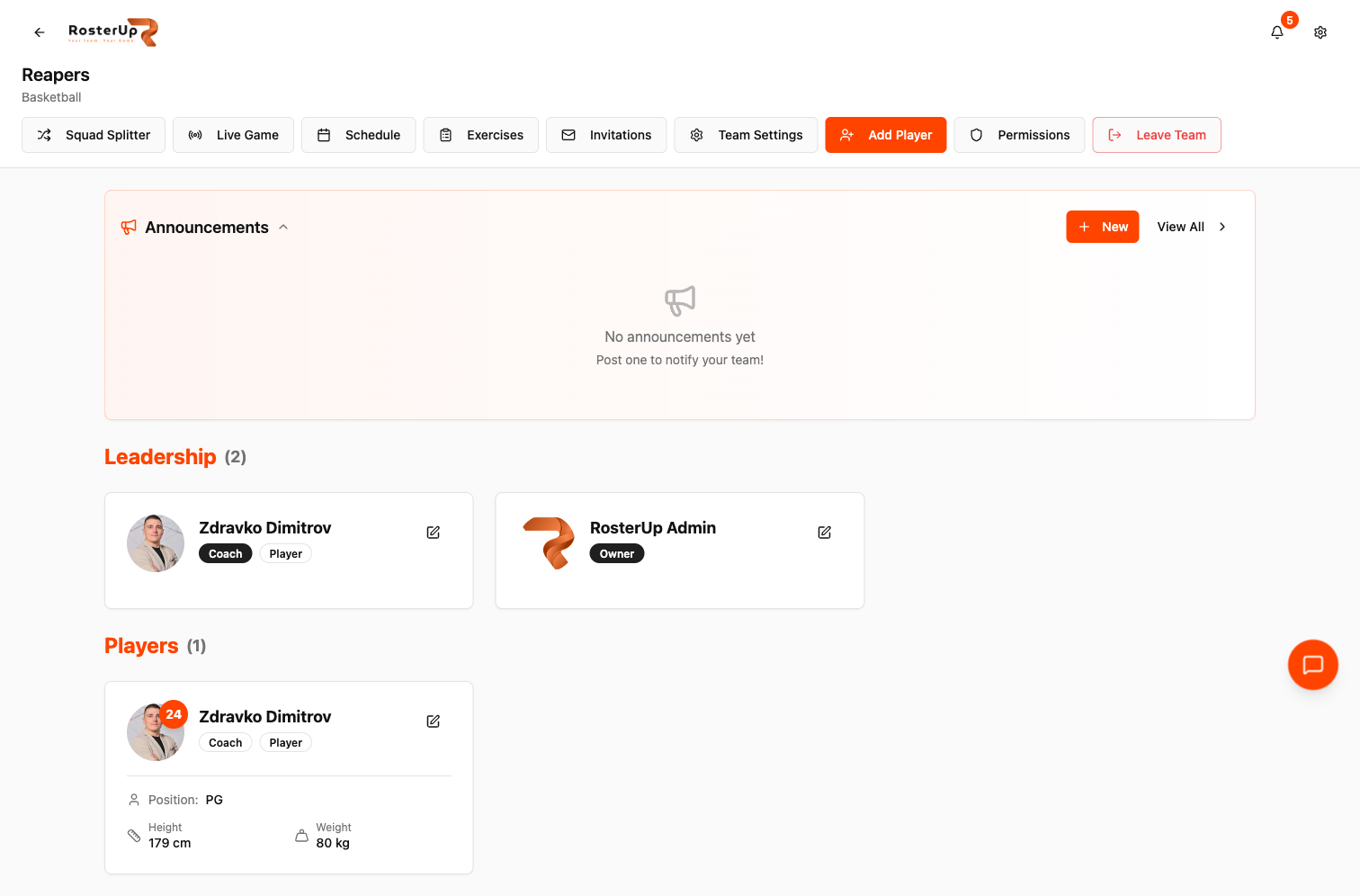
Every tool your team needs sits one click from the roster.
How it works
From setup to match day, step by step.
01
A coach creates a team from Create Team on the dashboard, choosing a name, a sport (Basketball, Football or Volleyball) and a city. The team is immediately usable.
02
Players join in one of three ways. The coach can use Add Player and pick the Create Account tab, which sets up a full player account with name, email, password, position, jersey number, height and weight. Or the coach can use the Generate Invite Link tab, which issues a personal invitation to a player’s email address with their squad details pre-filled. Or a player can join themselves from Find Teams, either by entering the team’s six-digit Invite Code or by browsing public teams and sending a Request to Join.
03
The Team Roster page is the team’s home. A Leadership block shows owners, coaches and assistants with their role badges. A Players block shows individual player cards with avatar, jersey number, position, height and weight. Above them sits the Announcements widget, so the most recent message to the squad is the first thing anyone sees.
04
Every team page carries a quick action bar: Squad Splitter, Live Game, Schedule, Exercises, Invitations, Team Settings, Add Player and Permissions. Coaches move between tools without hunting through menus.
What you get
Everything in Team Management.
Role hierarchy
RosterUp recognises five roles: owner, coach, manager, captain and player. Each level inherits what the level below can do. Owners and coaches manage the team and change roles; managers and captains can approve join requests and remove members; players see the roster and RSVP.
Granular permissions
The Permissions page lists every player in the team with four independent switches: Create Events, Create Announcements, Manage Roster and Manage Live Game. A coach can give the team captain the right to post announcements without giving them the right to delete players. A Select All control grants everything at once. Players are notified whenever a permission is granted or revoked.
Permission requests
Players who need a privilege can request it rather than ask in chat. Coaches see a Permission Management panel with the count of active permissions and act on requests from there.
Player profiles inside the team
Each member carries position, jersey number, height and weight. A coach or player can also mark themselves as “Also a Player” so they appear in Squad Splitter and Game Plan rosters even when their main role is coaching.
Team identity
Team Settings holds the team name, city, description (up to 300 characters), logo, cover photo and a public or private visibility setting. Public teams appear in the Find Teams directory; private teams are reachable only by invite code or direct invitation.
Invite code
Every team has a six-digit code that can be copied or regenerated. Regenerating invalidates the old code, which is the fastest way to close off an invite that has been shared too widely.
Invitations tracking
The Invitations page lists pending invitations that are waiting to be accepted, so a coach can see who has been asked and has not yet joined.
A closer look
Screen by screen.
Captured from the live RosterUp app.
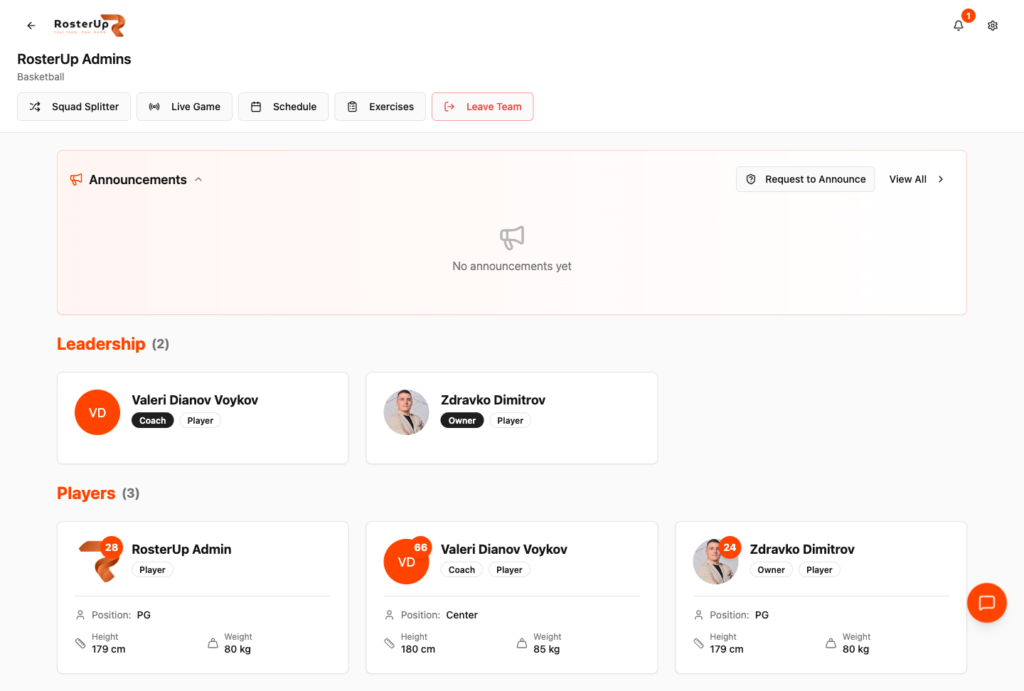
Players see the squad. Coaches see the controls.
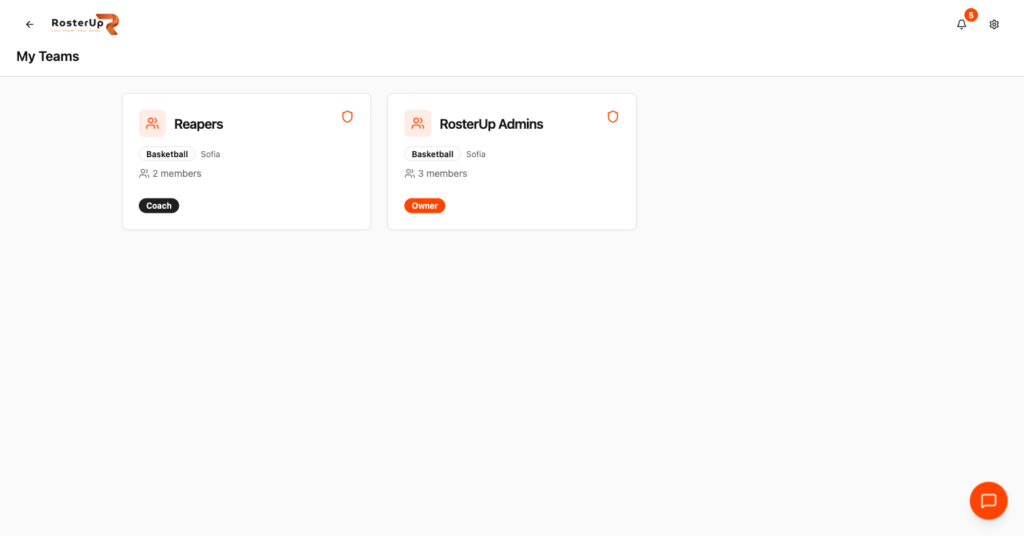
One account, every team you coach or play for.
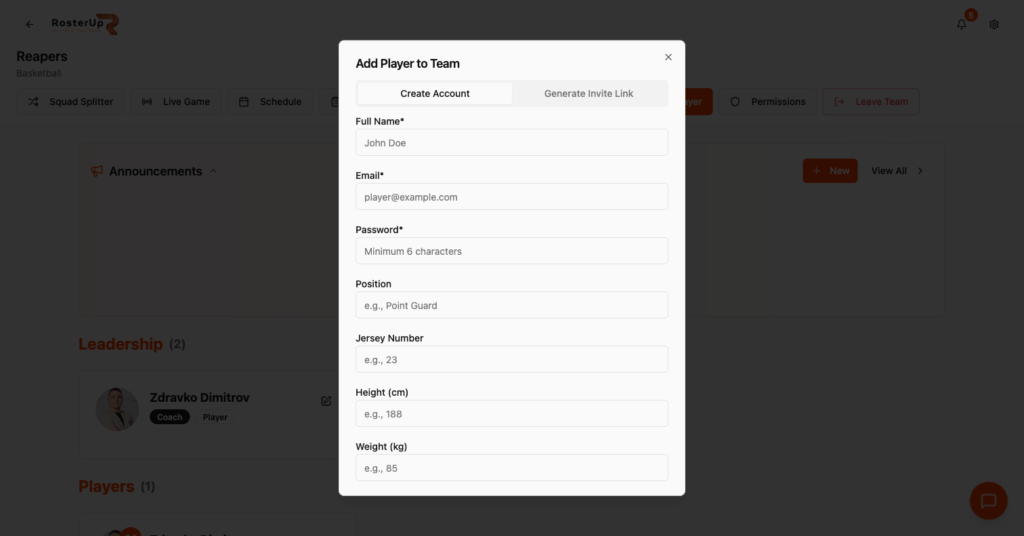
Create a player account with their squad details in one step.
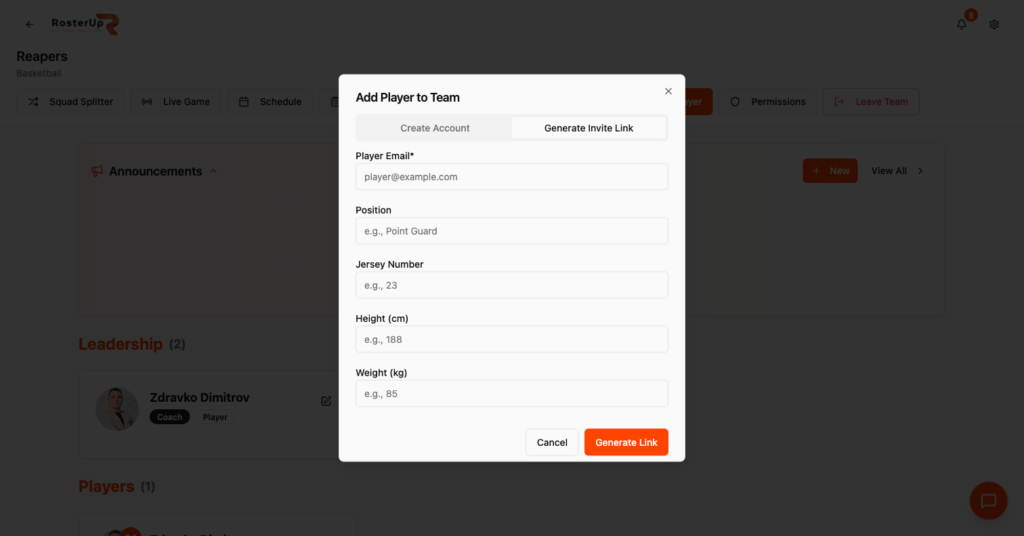
Or send a personal invite and let the player finish their own profile.
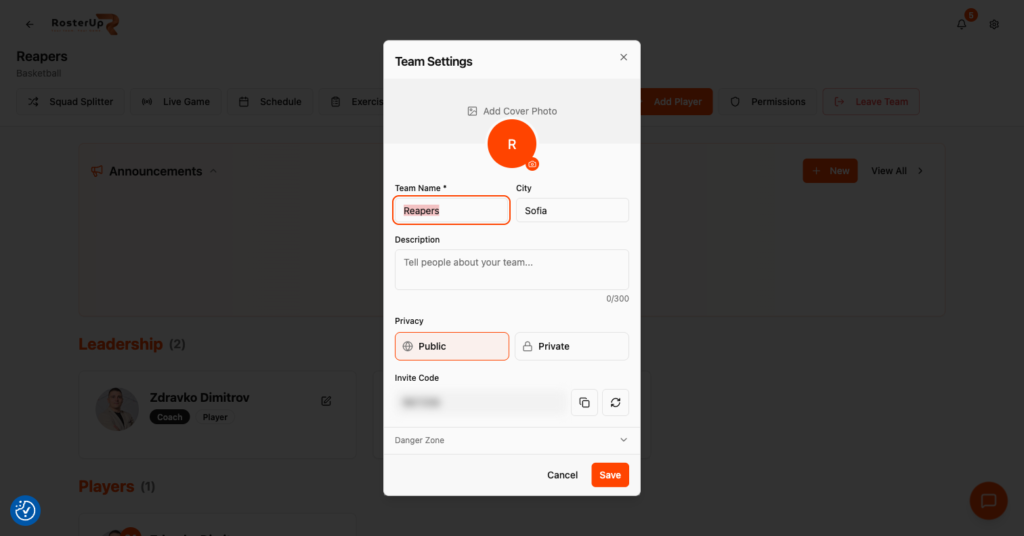
Name it, brand it, and decide who can find it.
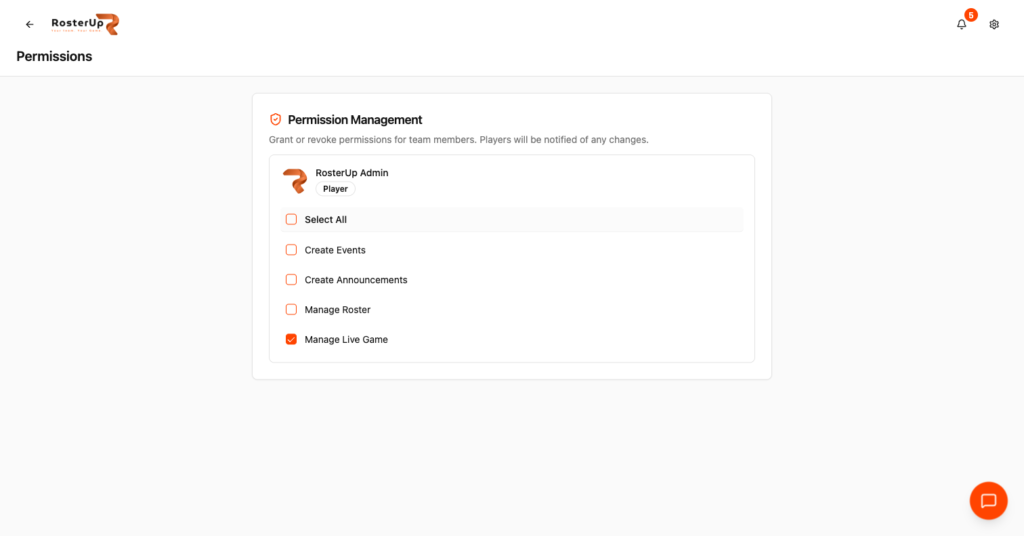
Delegate one responsibility at a time, not your whole account.
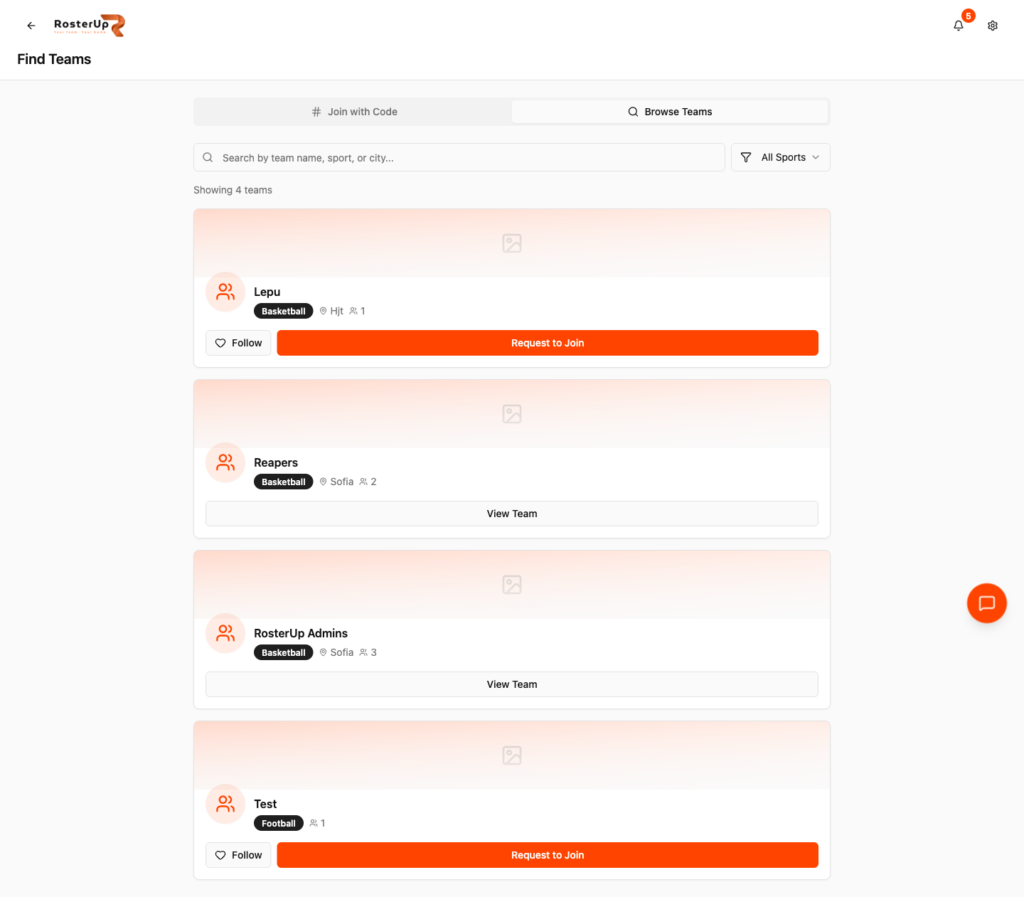
Public teams can be found, followed and joined. — ## Gaps to re-capture later – Invitations page currently shows an empty state (no pending invitations). Re-capture once a real invitation is outstanding. – Transfer Ownership dialog was not opened during the audit. NEEDS VERIFICATION. – Role change request flow (player side) was not captured. NEEDS VERIFICATION.
Who it helps
Both sides of the team sheet.
For coaches and managers
You stop being the single point of failure. Delegating “post the training time” no longer means giving somebody your password: you flip one switch and the captain can create events while everything else stays locked. When a player leaves, you remove them once and they lose access to the schedule, the chat and the game plans at the same time.
The roster is also a coaching asset. Positions, jersey numbers and physical data are attached to the player, so when you open Game Plan or Squad Splitter the roster is already there.
For players
A player sees exactly which teams they belong to and what their role is in each. They can carry one profile across several teams – a club team and a pickup crew – without creating separate accounts. If they want more responsibility, they can request it in the app instead of chasing the coach.
Wherever you are
Built for the sideline, shared with a link.
On the phone
The roster, team settings and permissions pages are built for phones first. The bottom navigation bar carries a Teams tab with a quick-switch popover: tap and hold it to jump straight into another team’s roster without going back to a list. Player cards stack into a single column, and every control meets a 44-pixel touch target.
Sharing and public access
Teams marked Public appear in the Find Teams directory, where anyone with an account can view the team, follow it, or send a join request. Private teams are invisible there. The invite code and personal invite links work either way.
In practice
How real teams use it.
A basketball club runs three age groups as three separate teams under the same coaching staff, each with its own roster and its own invite code.
A volleyball captain is given Create Events and Create Announcements so they can organise training while the head coach travels.
An amateur football side lets new players find them through Browse Teams instead of relying on word of mouth.
A youth academy keeps height and weight on each player card so physical development is visible season to season.
Why not just a group chat and a spreadsheet?
A group chat has no roles. Everyone can post, nobody can be given a specific responsibility, and there is no record of who is actually on the squad. A spreadsheet has no notifications and only one real editor. Neither knows what a jersey number is, so neither can feed a rotation plan or a scoreboard.
RosterUp keeps the roster as structured data that the rest of the product reads. The same player card that shows a position on the roster page becomes a draggable block in Game Plan and a name in the substitution sheet.
Questions
Frequently asked.
Which sports does RosterUp support for teams?
Teams can be created as Basketball, Football or Volleyball. The sport you choose changes the positions, periods and scoring used across Game Plan, Live Game and the tactical board.
How do players join my team?
Three ways: you create their account directly, you send them an invite link by email, or they join themselves using your team’s six-digit invite code or a join request from the public team directory.
Can I let a player post announcements without making them a coach?
Yes. The Permissions page has four independent switches – Create Events, Create Announcements, Manage Roster and Manage Live Game – that you can grant to any player without changing their role.
What roles exist in a team?
Owner, coach, manager, captain and player. Owners and coaches manage the team and change roles. Managers and captains can approve join requests and remove members.
Can somebody be a coach and a player at the same time?
Yes. A member can carry both badges, and marking yourself “Also a Player” makes you selectable in Squad Splitter and Game Plan rosters.
Can I hide my team from the public?
Yes. Set the team to Private in Team Settings and it will not appear in the Find Teams directory. People can still join with your invite code or a direct invitation.
What happens if my invite code gets shared too widely?
Regenerate it in Team Settings. The old code stops working immediately.
Can I manage more than one team from one account?
Yes. The team switcher in the header and the Teams tab in the mobile navigation let you move between every team you belong to, with your role shown for each.
Does RosterUp store player measurements?
Each player card holds position, jersey number, height in centimetres and weight in kilograms.
Is team management free?
Yes, creating and running a team is free.
Next
Works with the rest of RosterUp.
Schedule and RSVP
Create trainings, games and meetings in seconds. Players answer with one tap and you see a number.
Read more
Announcements
Pinned, prioritised messages that sit at the top of your team page until they stop mattering.
Read more
Live Game
Score, game clock, shot clock and fouls. Share a QR code and the whole sideline follows live.
Read more
Get started
Your Roster, Your Staff, Your Rules
Free to start. No sales call. Create your team and bring the squad in today.