Announcements
The Message Your Squad Cannot Miss
Pinned, prioritised announcements that sit at the top of your team page until they stop mattering – then hide themselves.
Free to start · No sales call · Basketball · Football · Volleyball
What it is
Team Announcements
Announcements are the messages your squad must not miss. A coach posts one, it sits at the top of the team page, and it can carry a priority level, a pin, an expiry date, named player mentions and a built-in RSVP button. Unlike a chat message, it does not scroll away.
Every team has two kinds of communication. There is conversation – the banter, the quick questions, the photos – and there is instruction: kit pick-up, the change of venue, the 45-minute warm-up before Sunday’s game. Chat handles the first badly enough, but it destroys the second. An instruction posted at 9pm is twenty messages deep by morning.
RosterUp separates them. Chat stays chat. Announcements are a distinct, persistent surface that lives at the top of the team roster page and has its own page with search and filters. A coach can mark one Urgent, pin it above everything else, and set it to disappear by itself once it stops being relevant.
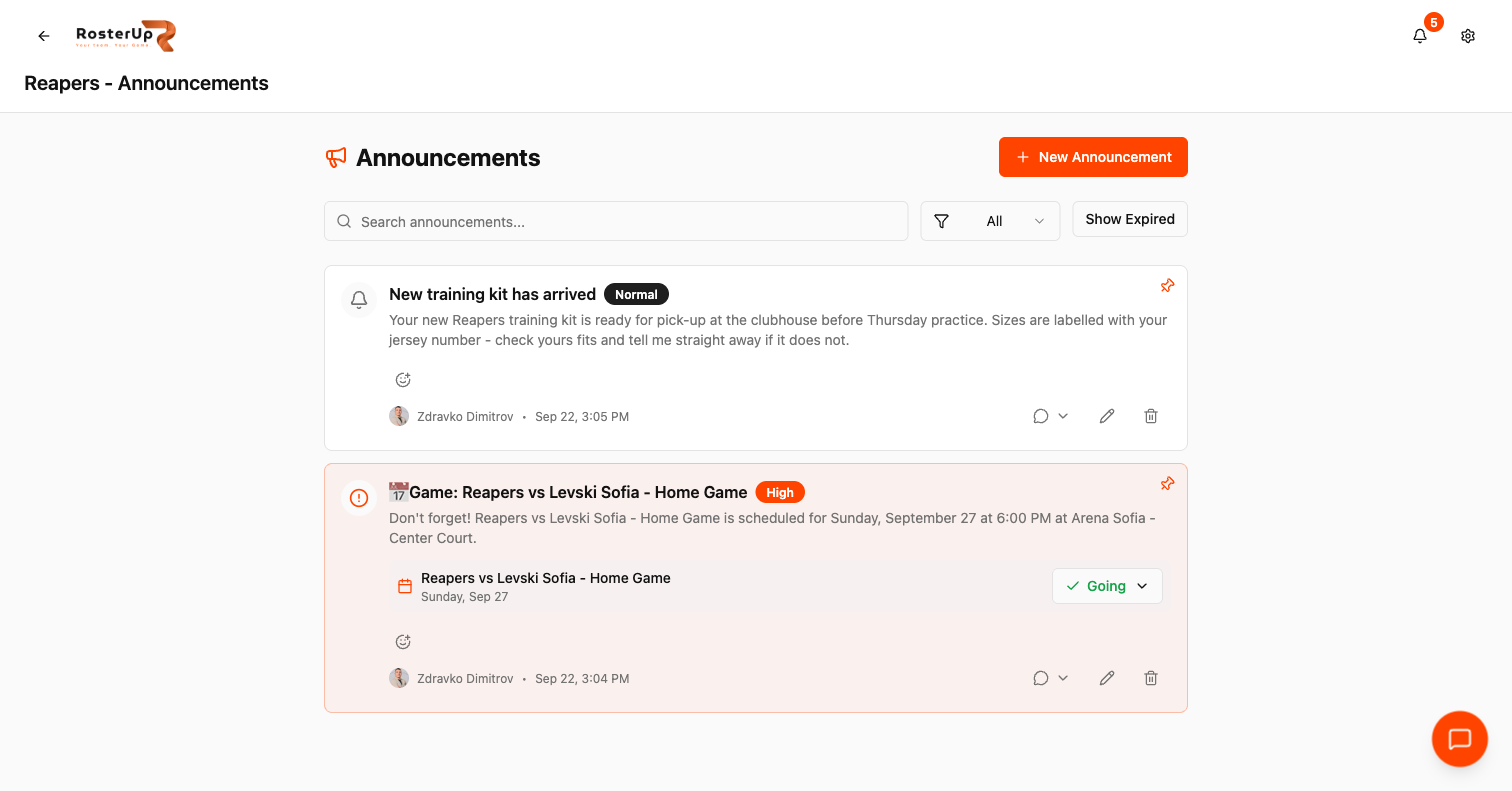
Priority, pins and a built-in RSVP button on the announcement itself.
How it works
From setup to match day, step by step.
01
A coach opens Announcements from the team page and clicks New Announcement. The dialog asks for a title and a message of up to 1000 characters, then offers four controls that change how the announcement behaves:
02
– Link to Event (optional) – pick a scheduled training, game or meeting. Linking an event adds a quick RSVP button to the announcement itself. – Mention Players – name specific members, which raises the notification type for them. – Priority – Normal, High or Urgent. Urgent announcements are delivered as alerts rather than as ordinary information. – Pin Announcement – pinned announcements stay at the top of the list. – Set Expiration – the announcement auto-hides after the date you choose.
03
Once posted, the announcement appears on the team roster page in the Announcements widget and in the full Announcements list, where it can be searched, filtered, reacted to, commented on, edited or deleted by whoever has the right to do so.
04
There is a second, faster route. From any event in the schedule, the Announce button opens Add Event to Announcements with the title, date, time and venue already written, the priority already set to High, the pin already on and the expiry already set to the day after the event. One click and the team has a pinned game-day reminder with an RSVP button attached.
05
Players who are not coaches see a Request to Announce button instead of New, so they can ask for the right to post rather than working around it.
What you get
Everything in Announcements.
Priority levels
Normal, High and Urgent. High and Urgent announcements are visually distinguished in the list, and an Urgent announcement or a direct mention is delivered as an alert-type notification rather than an informational one.
Pinning
A pinned announcement stays at the top no matter how many newer ones arrive. Use it for the things that stay true all season – the gym access code, the kit rules.
Auto-expiry
Set a date and the announcement hides itself. Game-day reminders stop cluttering the page the moment they stop mattering.
Event linking with quick RSVP
An announcement tied to an event shows the event title and date inside the announcement card, with a Going / Maybe / No dropdown. A player reads the reminder and answers in the same place.
Player mentions
Name the three players who need to bring the spare kit and they are notified directly.
Reactions and comments
Each announcement carries an emoji reaction control and a comment thread, so a quick “understood” does not need a new chat message.
Search and filters
The announcements page has a search box, a status filter and a Show Expired toggle for looking back at what was posted.
Permission-controlled posting
Only owners, coaches and members granted the Create Announcements permission can post. Everyone else can request it.
A closer look
Screen by screen.
Captured from the live RosterUp app.
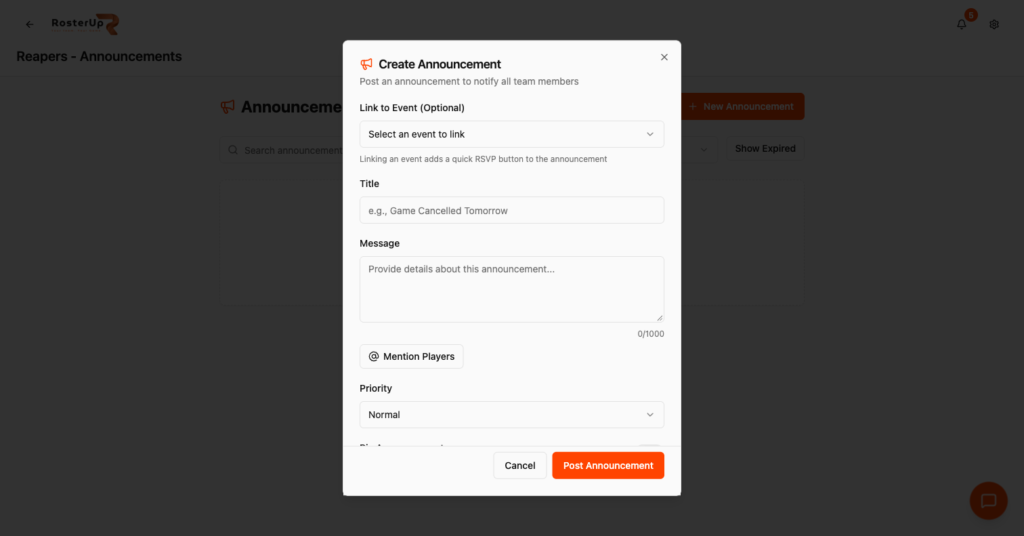
Every control tells you what it does.
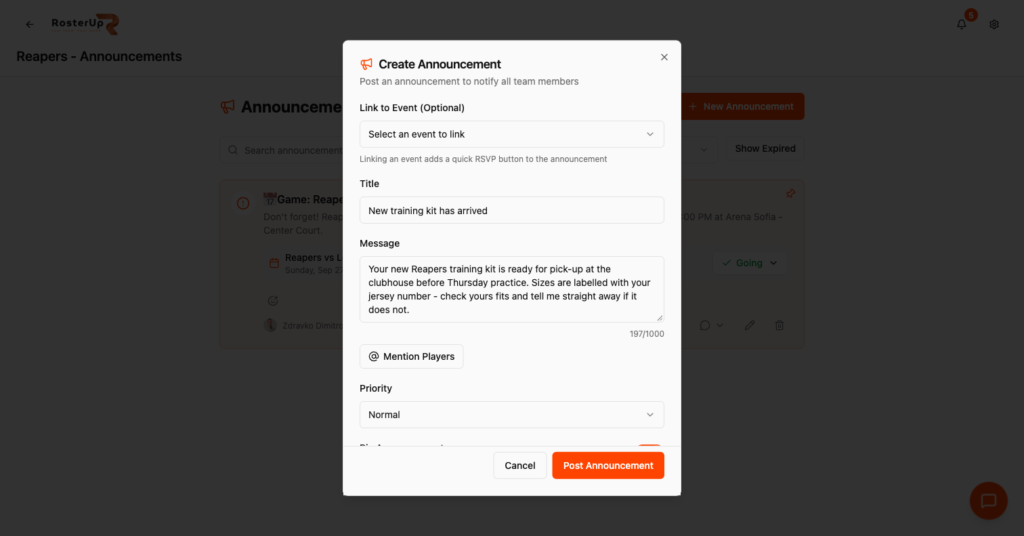
Write it once, pin it, and stop repeating yourself.
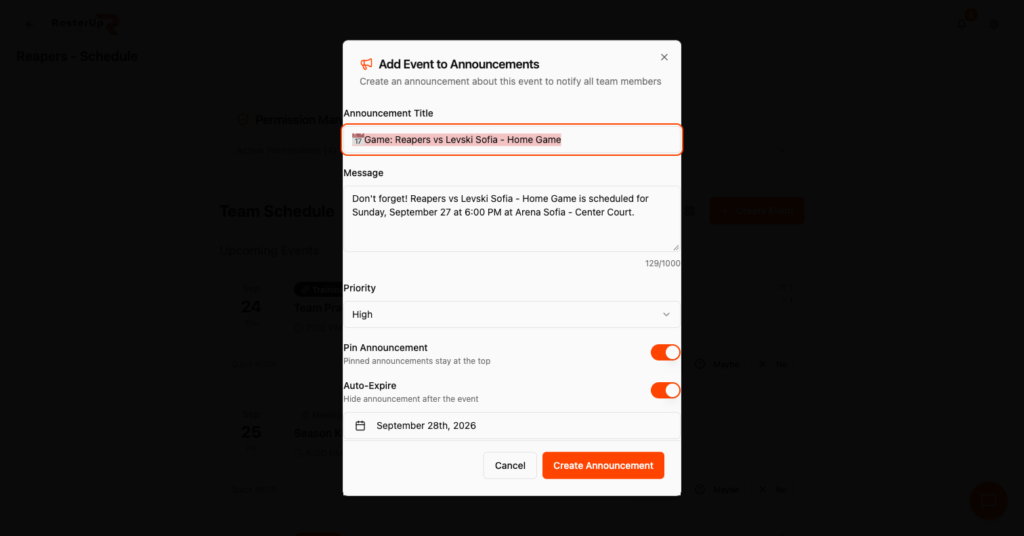
One click turns Sunday’s game into a pinned, expiring reminder. — ## Gaps to re-capture later – Announcement comment thread in use. NEEDS VERIFICATION. – Player-side “Request to Announce” flow and the coach-side approval of announcement permission requests. NEEDS VERIFICATION. – An Urgent priority announcement as it appears in the list. – Mobile announcements widget on the team page.
Who it helps
Both sides of the team sheet.
For coaches and managers
You get one surface where the important message stays visible. You stop repeating yourself, because a pinned announcement does the repeating. You stop chasing replies, because the event-linked RSVP button collects them. And because you can delegate Create Announcements to a captain or a team manager without making them a coach, the job does not have to sit with you.
For players
Nothing important is buried. The most recent announcement is at the top of the team page, so opening the team is enough to catch up. When an announcement is about Sunday’s game, the answer button is right there – no switching to the schedule, no separate reply.
Wherever you are
Built for the sideline, shared with a link.
On the phone
The Announcements widget is the first block on the mobile team page, above the roster. Announcement cards stack full width with the priority badge next to the title, the pin icon in the corner, and reaction, comment, edit and delete controls in a single row at the bottom. The event-linked RSVP dropdown is a full-size tap target.
Sharing and public access
Announcements are internal to the team. They are not published to a public URL, which is deliberate: this is the surface for squad instructions rather than for public news. For content meant to be seen outside the team, the Feed is the right tool.
In practice
How real teams use it.
A basketball coach posts “Warm-up starts 45 minutes before tip-off” linked to Sunday’s game, pinned and set to expire Monday. Players RSVP from the announcement.
A volleyball manager pins “Gym door code is on the noticeboard” for the whole season.
A football coach marks “Sunday’s match moved to the 3G pitch” as Urgent so it is delivered as an alert.
A team manager mentions four specific players to remind them they owe subs.
An academy coach uses Show Expired at the end of the season to review what was communicated and when.
Why not just a group chat and a spreadsheet?
Pinning a message in a chat app gets you one pin and no priority, no expiry, no mentions that mean anything, and certainly no RSVP button. Email gets read by half the squad. A noticeboard in the clubhouse is only seen by whoever walks past it.
The real advantage is that a RosterUp announcement is connected to the rest of the product: it can point at an event, collect attendance for that event, and disappear when the event is over – without anyone tidying up.
Questions
Frequently asked.
How is an announcement different from a chat message?
An announcement is a persistent surface at the top of the team page. It carries a priority level, can be pinned, can auto-expire, can mention specific players and can hold an RSVP button for a scheduled event. Chat messages scroll away.
What priority levels are available?
Normal, High and Urgent. Urgent announcements and direct mentions are delivered as alert-type notifications rather than as ordinary information.
Can an announcement disappear on its own?
Yes. Set an expiration date and the announcement auto-hides after it. Expired announcements can still be found with the Show Expired toggle.
Can players answer an announcement about a game?
Yes, if you link the announcement to a scheduled event. That adds a Going / Maybe / No control directly inside the announcement.
Is there a fast way to announce a game?
Open the event in the schedule and press Announce. RosterUp pre-writes the title, date, time and venue, sets it to High priority, pins it and sets it to expire after the event.
Can a player post announcements?
Only if you grant them the Create Announcements permission. Otherwise they see a Request to Announce button and can ask for the right.
How long can an announcement be?
Up to 1000 characters, with a title.
Can the team reply to an announcement?
Yes. Each announcement has emoji reactions and a comment thread.
Are announcements public?
No. They are visible to team members only. For public content, use the Feed.
Can I edit or delete an announcement after posting?
Yes, from the announcement card.
Next
Works with the rest of RosterUp.
Schedule and RSVP
Create trainings, games and meetings in seconds. Players answer with one tap and you see a number.
Read more
Team Chat
A private conversation for every team, next to the roster, the schedule and the playbook it is about.
Read more
Notifications
Role changes, permissions, join requests and urgent announcements, with a history you can filter.
Read more
Get started
The Message Your Squad Cannot Miss
Free to start. No sales call. Create your team and bring the squad in today.