Game Plan
Plan Every Rotation Before Tip-Off
Build the whole game on one screen, get every player’s minutes calculated for you, and walk to the bench with a substitution sheet that tells you exactly who comes on and when.
Free to start · No sales call · Basketball · Football · Volleyball
What it is
Game Plan (Game Splitter)
Game Plan is RosterUp’s rotation planner. You build a visual, colour-coded timeline of who plays which position in each quarter, half or set, and RosterUp works out the rest: total minutes per player, how much time is played out of position, and a printable substitution sheet that tells you exactly who comes on at 6:00 and for whom. Share it with one link and the whole bench has the same plan.
Deciding a rotation is the part of coaching that quietly eats the most time and causes the most friction. A coach with twelve players and forty minutes has to keep four things straight at once: everybody gets meaningful minutes, the five on court make sense together, nobody plays a position they cannot play, and the substitutions actually happen at the right moment during a loud game.
Most coaches do this on paper the night before, then try to remember it under pressure. Parents ask why their child played nine minutes. The coach genuinely does not know, because nobody counted.
Game Plan makes the rotation a visual object you build once and then read from the bench. The minutes are calculated, not estimated. The substitution list is generated, not written. And because it can be shared as a link, the assistant coach, the players and the parents can all see the same plan.
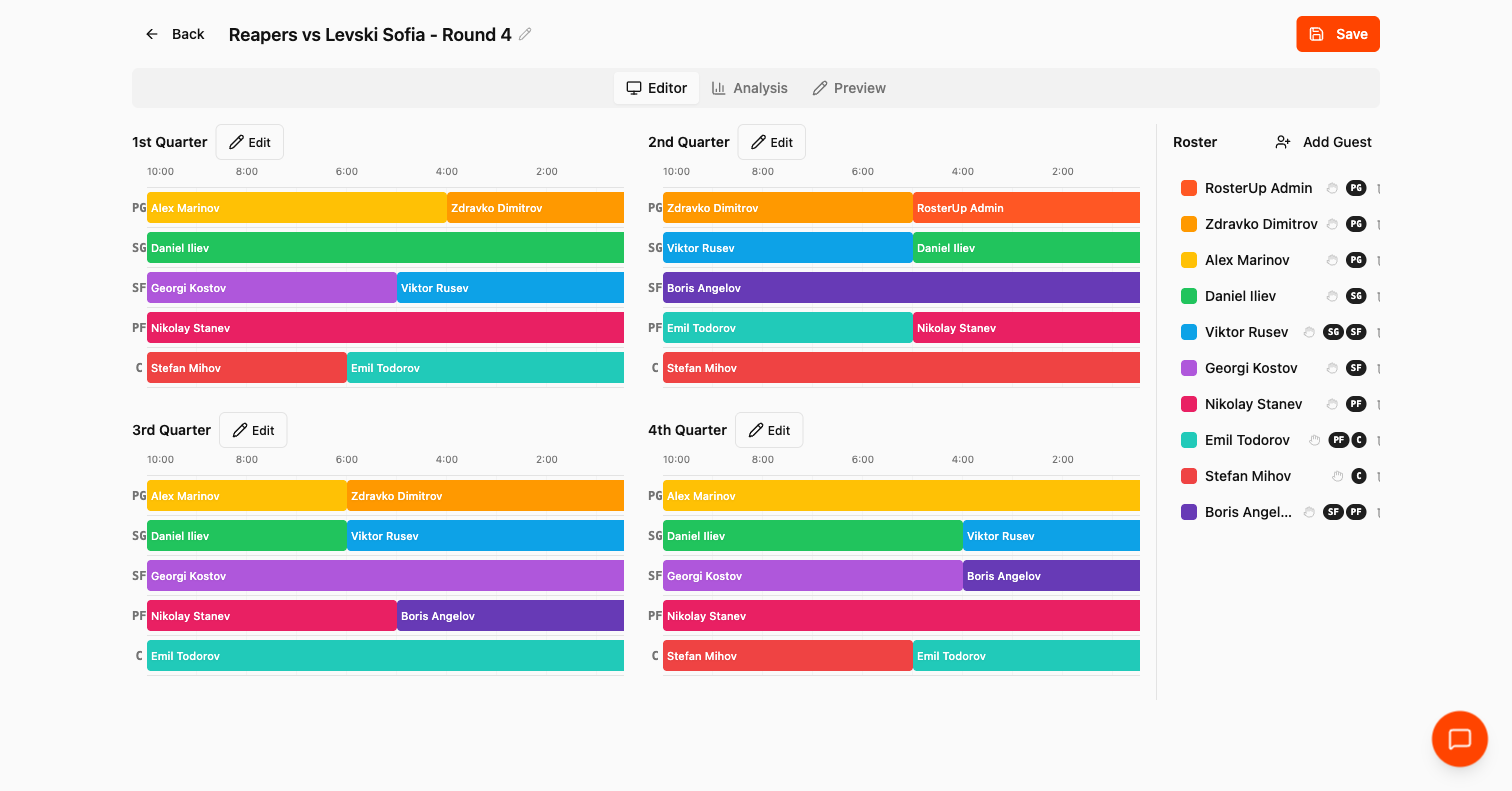
The whole game on one screen, before it starts.
How it works
From setup to match day, step by step.
01
Open Game Plan from the dashboard, pick your team, and you land in the rotation editor.
02
First you build the roster for this game. The Roster panel lists your team members with an Add All button, and an Add Guest control for anyone not on the official roster – a trialist, a call-up from another age group, a player borrowed for one match. Each guest is given a name and one or more positions.
03
Then you build the rotation. The editor shows every period of the match side by side – four quarters for basketball, two halves for football, sets for volleyball – each as a grid with one row per position and a time axis running from the start of the period to zero.
04
Press Edit on a period to open the quarter roster. Each position has an Add to PG, Add to SG and so on. Adding a segment gives you a row with three controls: the player, the minute they come on, and the minute they come off. Add a second segment to the same position and you have a substitution. The player dropdown only offers players whose listed positions include that slot, so you cannot accidentally put a centre at point guard.
05
Press Apply and the period fills with colour-coded blocks, one colour per player, carried consistently across all four periods. At a glance you can see who is on the floor at any moment of the game.
06
Name the plan, press Save, and press Share to copy a public link.
What you get
Everything in Game Plan.
Visual rotation timeline
Every period, every position, every minute, colour-coded by player from a twelve-colour palette so a player is the same colour in Q1 and Q4.
Multi-sport, multi-format
Basketball uses four ten-minute quarters and PG, SG, SF, PF, C. Football uses two halves and a position set that changes with the match format – 11v11, 9v9, 8v8, 7v7, 6v6 or 5v5 – so a 7v7 youth team gets GK, LB, CB, RB, CM, LW, ST rather than a full eleven-a-side list. Volleyball plans in points rather than minutes: sets one to four run to 25 points and the fifth to 15.
Guest players
Add anyone to the plan by name and position, without creating an account or adding them to the team.
Multi-position players
A player can be listed at several positions and will be offered for each of them.
Playing time analysis
The Analysis tab produces a bar chart of total minutes per player, sorted from most to least, colour-matched to the timeline. You can see the gap between your most and least used player instantly.
Out-of-position tracking
RosterUp calculates how many minutes are played by players outside their listed positions, as a total, as a percentage of the game, and broken down per player.
Substitution sheet
The generated bench sheet: for each period, the starting five by position, then every substitution with its clock time, written in plain language – “Emil Todorov subs in for Stefan Mihov to play C” at 6:00. A toggle shows players switching positions as well as players coming on and off.
Three ways to read the same plan
The Preview tab offers Substitution Chart (the visual timeline), Playing Time (the minutes chart) and Substitution Sheet (the bench list), so a coach, an assistant and a parent can each look at the form that suits them.
Saved plans per team
Every game plan is stored against the team, listed with its date and player count, and can be reopened, edited or deleted.
Public link
One click copies a link anyone can open.
A closer look
Screen by screen.
Captured from the live RosterUp app.
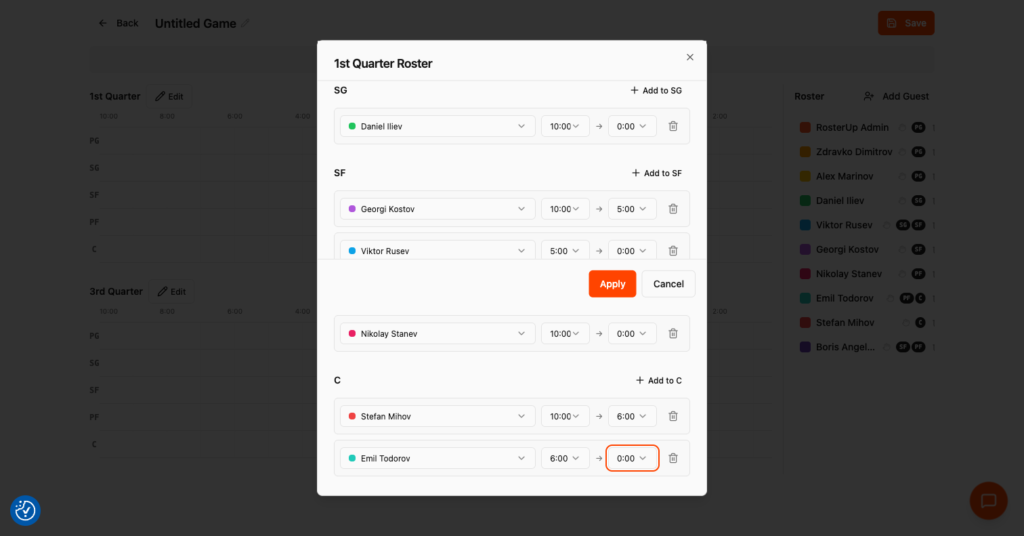
Pick the player, the minute they come on and the minute they come off.
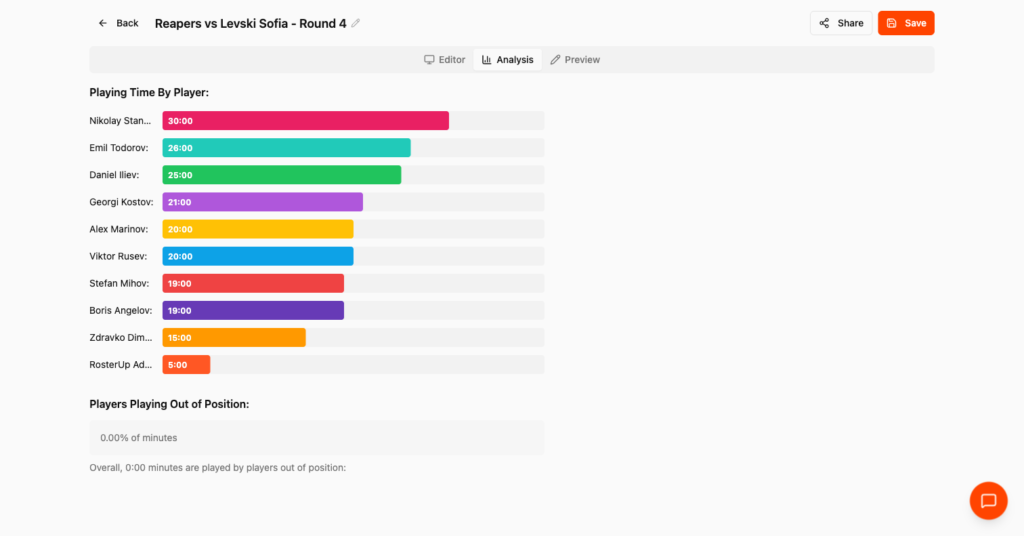
Minutes calculated, not estimated.
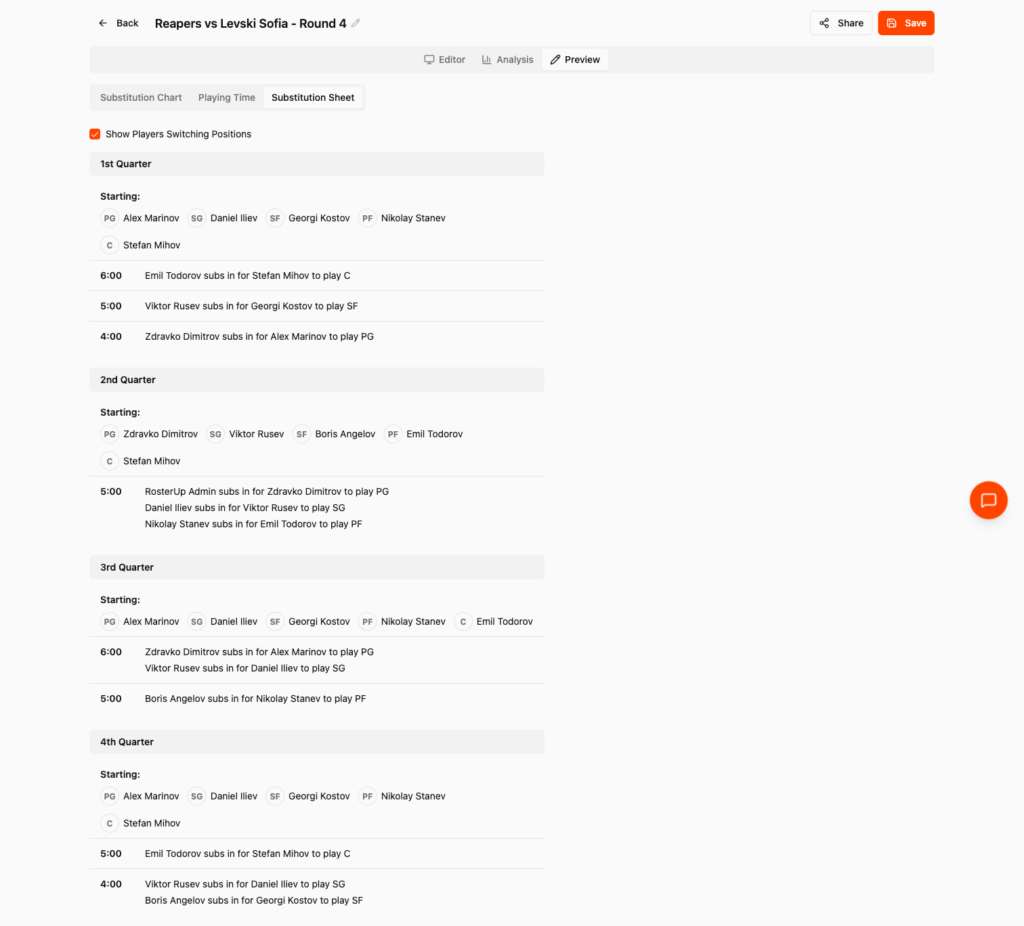
At 6:00, Emil comes on for Stefan at centre. Written for you.
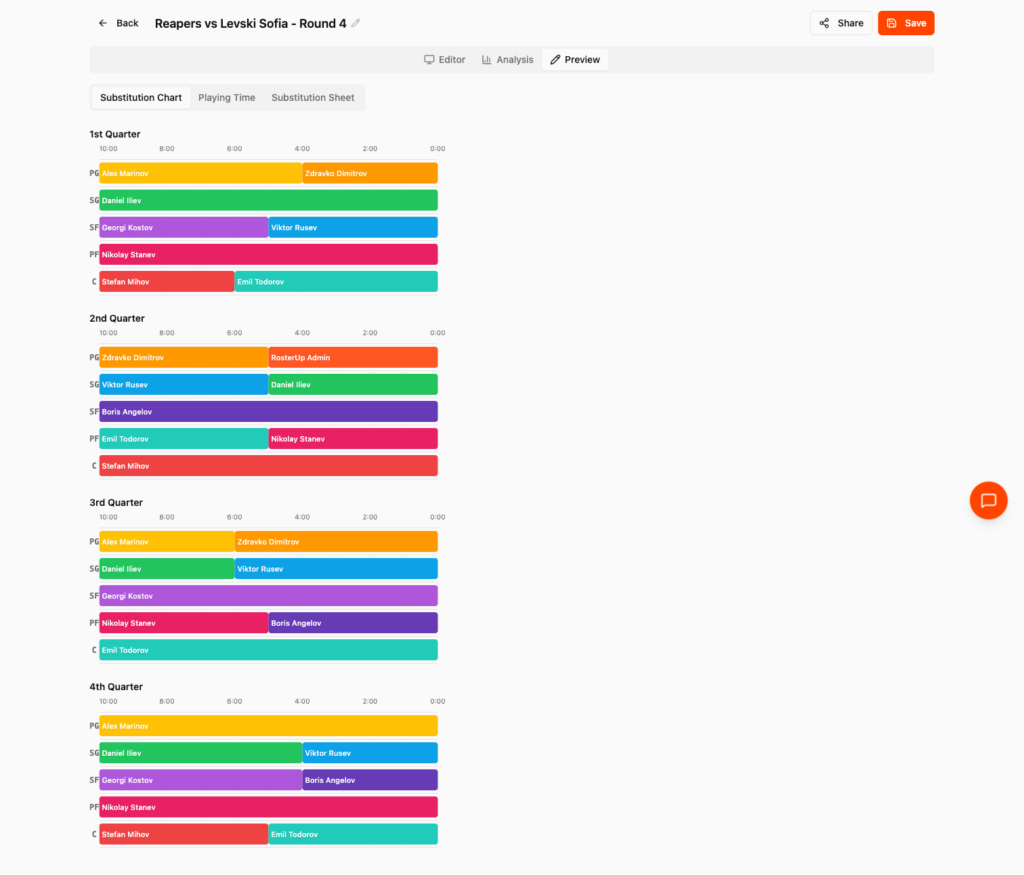
The same plan, clean, ready to share.
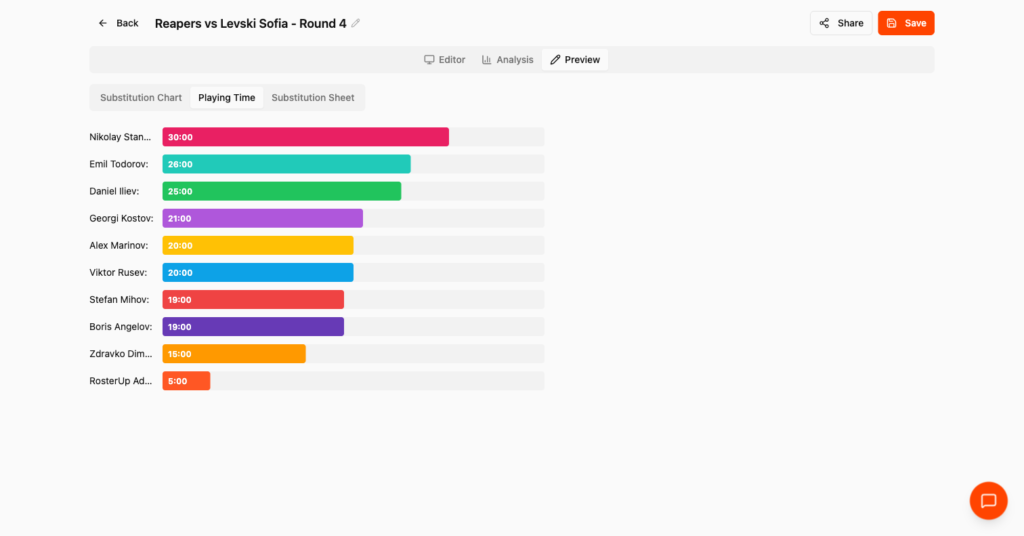
The view you send to parents.
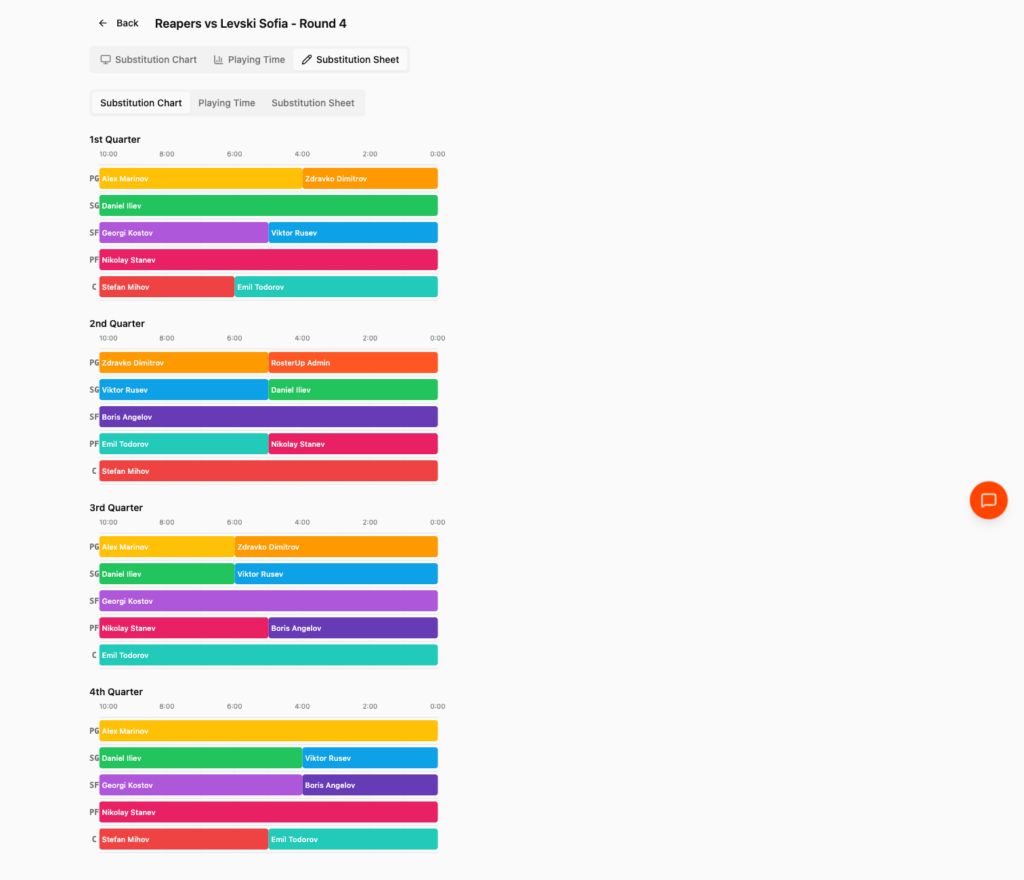
One link. No account needed.
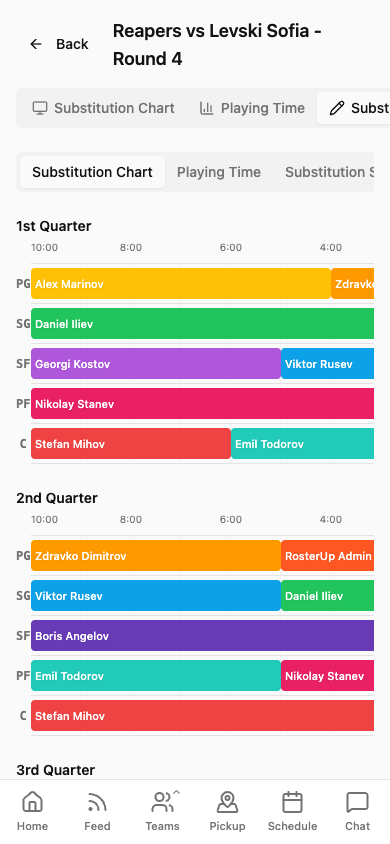
Built on a laptop. Read on a phone.
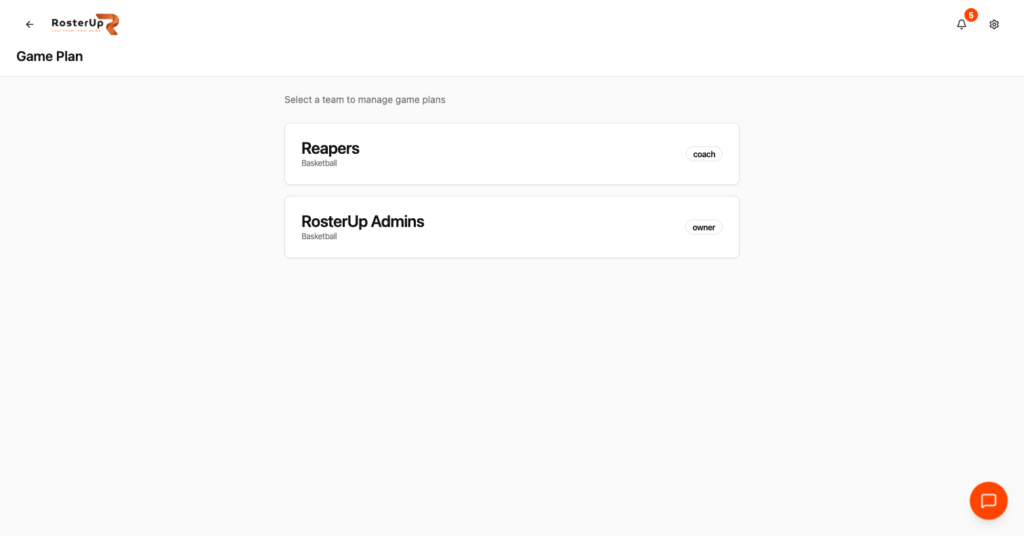
Pick the team, then build the plan. — ## Gaps to re-capture later – Football and volleyball game plans. The football format selector (11v11 down to 5v5) and the volleyball point-based set timeline are documented from the product’s configuration but NOT captured. Needed before publishing the multi-sport section. – The Add Guest dialog with its position multi-select. – A plan with genuine out-of-position minutes, so the analysis block shows a non-zero value. This likely requires dragging blocks on the timeline rather than using the assignment modal. NEEDS VERIFICATION of the drag interaction. – The saved Game Plans list (it appears on the Squad Splitter page; captured there as part of 08-squad-splitter).
Who it helps
Both sides of the team sheet.
For coaches and managers
You stop guessing at minutes. The number is calculated from the plan, so when a parent asks, you have an answer and you had it before the game. You stop rewriting the rotation on a napkin when a player pulls out – you open the plan, swap the segment and the totals recalculate.
Most importantly, you get a substitution sheet you can actually follow from the bench. Knowing you want balanced minutes is not the same as knowing that at 6:00 in the second quarter, Nikolay comes off for Emil at power forward.
Wherever you are
Built for the sideline, shared with a link.
On the phone
The rotation editor is built on a desktop-sized grid, and that is where a coach builds the plan. Reading it is a different job, and the shared view is fully mobile: the timeline scrolls horizontally at phone width with position labels fixed at the left, and the substitution sheet and playing-time chart stack into a single readable column. On match day the plan is read on a phone at the bench.
Sharing and public access
Pressing Share copies a public URL of the form
app.rosterup.eu/game/your-team-slug. Anyone with that link can open the plan without an account and read all three views – chart, playing time and substitution sheet – as read-only. This is how an assistant coach, a parent helping with subs, or a player checking their role gets the same plan the coach built. In practice
How real teams use it.
A basketball coach plans four quarters for ten players, checks that nobody is under fifteen minutes, and shares the substitution sheet with the assistant who will actually make the changes.
A youth academy plans equal minutes and shares the playing-time chart with parents in advance, removing the argument before it starts.
A 7v7 youth football coach builds a rotation using the 7v7 position set rather than a full eleven-a-side layout.
A volleyball coach plans rotations by point rather than by minute across a best-of-five.
A coach adds two trialists as guests for a friendly without adding them to the club roster.
Why not just a group chat and a spreadsheet?
A spreadsheet can hold a rotation, but it will not tell you a player’s total minutes unless you build the formulas, and it certainly will not generate a substitution list. Paper cannot be shared or edited. Counting minutes in your head during a game is not a plan, it is a hope.
The specific gain is the derived output: you enter the rotation once, and RosterUp produces the minutes, the out-of-position analysis and the bench sheet from it. Change one block and all three update.
Questions
Frequently asked.
What is a Game Plan in RosterUp?
A visual rotation plan. You lay out who plays which position during each quarter, half or set, and RosterUp calculates the minutes, flags out-of-position time and generates a substitution sheet.
Which sports does it support?
Basketball with four quarters and PG/SG/SF/PF/C, football with two halves and positions that change with the match format, and volleyball with sets planned in points rather than minutes.
Does it work for small-sided football?
Yes. Choose the match format – 11v11, 9v9, 8v8, 7v7, 6v6 or 5v5 – and the position set changes to match. A 7v7 plan uses GK, LB, CB, RB, CM, LW and ST.
How does volleyball planning work?
Volleyball has no game clock, so RosterUp plans by point instead. Sets one to four run to 25 points and the fifth to 15.
Does it calculate each player's minutes?
Yes. The Analysis tab shows total playing time per player as a sorted bar chart, colour-matched to the rotation timeline.
What is out-of-position tracking?
RosterUp compares each assignment against the player’s listed positions and reports how much time is played out of position, as a total, a percentage and a per-player breakdown.
What is the substitution sheet?
A generated bench list. For each period it gives the starting line-up by position, then every substitution with its clock time, written in plain language such as “Emil Todorov subs in for Stefan Mihov to play C”.
Can I include players who are not on my roster?
Yes. Add Guest lets you add a trialist or a call-up by name and position without creating an account or adding them to the team.
Can I share the plan with my assistant or with parents?
Yes. Share copies a public link that opens the plan read-only, with the chart, the playing-time view and the substitution sheet.
Can a player be listed at more than one position?
Yes, and they will be offered for each position they can play.
Can I save more than one plan per team?
Yes. Plans are saved against the team with their date and player count, and can be reopened or deleted.
Next
Works with the rest of RosterUp.
Live Game
Score, game clock, shot clock and fouls. Share a QR code and the whole sideline follows live.
Read more
Public Sharing
Plans, plays, splits and live scores all open from a link, read-only, with no account.
Read more
Squad Splitter
Auto Split turns whoever turned up into two even sides, then posts them into team chat.
Read more
Get started
Plan Every Rotation Before Tip-Off
Free to start. No sales call. Create your team and bring the squad in today.