Mobile App
Your Team, One Tap From Your Home Screen
Install RosterUp from your browser and open your roster, schedule, chat, scoreboard and playbook full screen – no app store, no download.
Free to start · No sales call · Basketball · Football · Volleyball
What it is
Account, Settings and the Mobile App
Your RosterUp account holds your player details, your role in every team, your attendance record and your security settings – and it installs to your phone’s home screen as an app. Sign in with Google or email, turn on two-factor authentication, control who can see your phone number, and open your team in one tap.
The account is the least glamorous part of a team product and the one people touch most often. It decides how you get in, what your teammates can see about you, which teams you belong to and in what capacity, and whether the product behaves like a website you have to find or like an app on your home screen.
RosterUp treats this seriously. Coaching accounts carry more responsibility than player accounts, so two-factor authentication is offered with the note that it is required for coach and admin accounts. A phone number is useful to a coach and private to a player, so it is stored with an explicit switch controlling visibility. And because a team product is used standing up in a sports hall, RosterUp can be installed to the home screen and opened full screen without a browser around it.
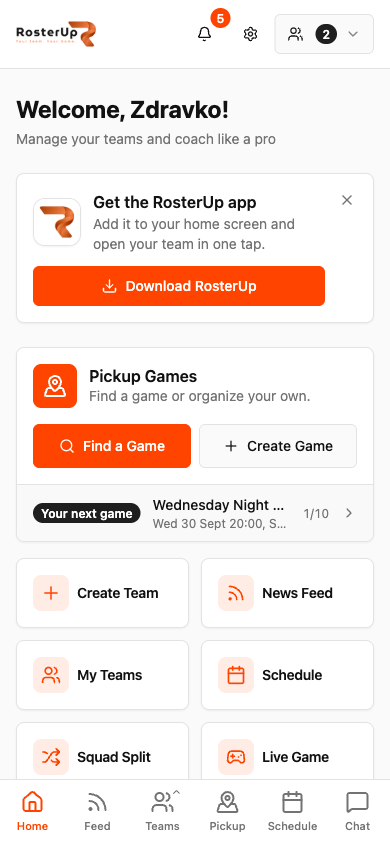
Six tabs. Everything one thumb away.
How it works
From setup to match day, step by step.
01
Signing in. The sign-in screen offers Continue with Google or an email and password, with a Remember me option and a Forgot password flow. New users sign up on the same screen. Where two-factor authentication is enabled, a verification step follows, and accounts carry an email verification flow.
02
Dashboard. After signing in you land on the home screen: a welcome, an install prompt for the app, a Pickup Games card showing your next game with its time, venue and current sign-up count, then nine tiles – Create Team, News Feed, My Teams, Schedule, Squad Split, Live Game, Team Chat, Exercises and Game Plan – plus Find and Join Teams and a Send Feedback control.
03
Settings. One long page, grouped into sections:
04
– Cover photo and profile picture – a 3:1 banner and a square avatar up to 10MB, automatically optimised to WebP. – Profile information – email (fixed), full name, a 160-character bio, country, phone number, and the Show phone to teammates switch. – Account Role – how you use RosterUp overall, for example “Coach & Player – create and manage teams while also playing as a player”. – Attendance Statistics – total events, attendance rate, Going and Not Going counts, a progress bar and badges such as Reliable Player and Top Performer. – Player Information – position, jersey number, height and weight. – My Team Roles – every team you belong to with your role, a Request Role Change control, and an Also a Player switch that makes you selectable in Squad Splitter and Game Plan. – Security – Two-Factor Authentication, noted as required for coach and admin accounts, plus Linked Accounts showing your connected Google account, and Change Password. – Contact Support – a ticket form with a category (Bug Report, Feature Request, Billing, Other), a subject, a message and optional screenshot attachments. – RosterUp app – install to this device.
05
Installing the app. RosterUp is a progressive web app. The dashboard shows a “Get the RosterUp app” card – “Add it to your home screen and open your team in one tap” – and Settings carries the same install option with instructions. Once installed it opens full screen from the home screen icon.
What you get
Everything in Mobile App.
Google sign-in and email sign-in
Both supported, with Remember me and password recovery.
Two-factor authentication
Offered to all accounts and flagged as required for coach and admin accounts.
Linked accounts
See and disconnect a connected Google account.
Session timeout warning
The app warns before an idle session expires rather than dropping you silently.
Phone number privacy
Stored with an explicit visibility switch.
Per-team player details
Position, jersey number, height and weight can differ per team.
Also a Player
A coach can opt into being selectable in Squad Splitter and Game Plan rosters.
Request Role Change
Ask for a different role in a team from inside Settings rather than in chat.
Attendance statistics and badges
A real record of turning up, with Reliable Player and Top Performer recognition.
Image handling
Avatars and covers are cropped in-app and optimised to WebP automatically.
In-app support tickets
A categorised support form with screenshot attachments.
Installable app
Home screen icon, full-screen launch, and a persistent six-tab bottom navigation – Home, Feed, Teams, Pickup, Schedule, Chat – with a team quick-switch on the Teams tab and an unread badge on Chat.
A closer look
Screen by screen.
Captured from the live RosterUp app.
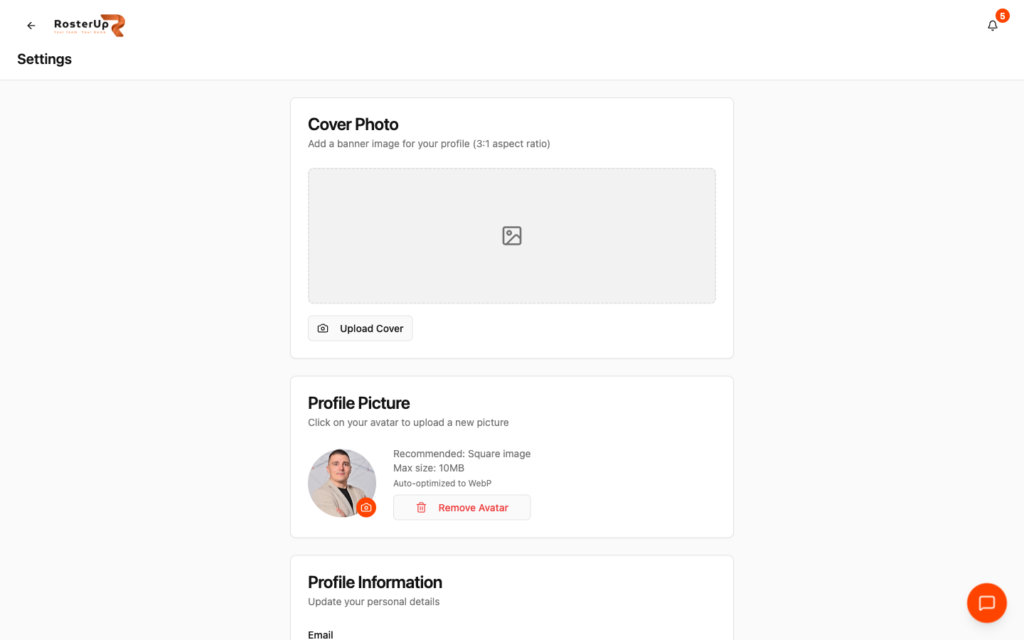
Enter it once. It follows you into every team.
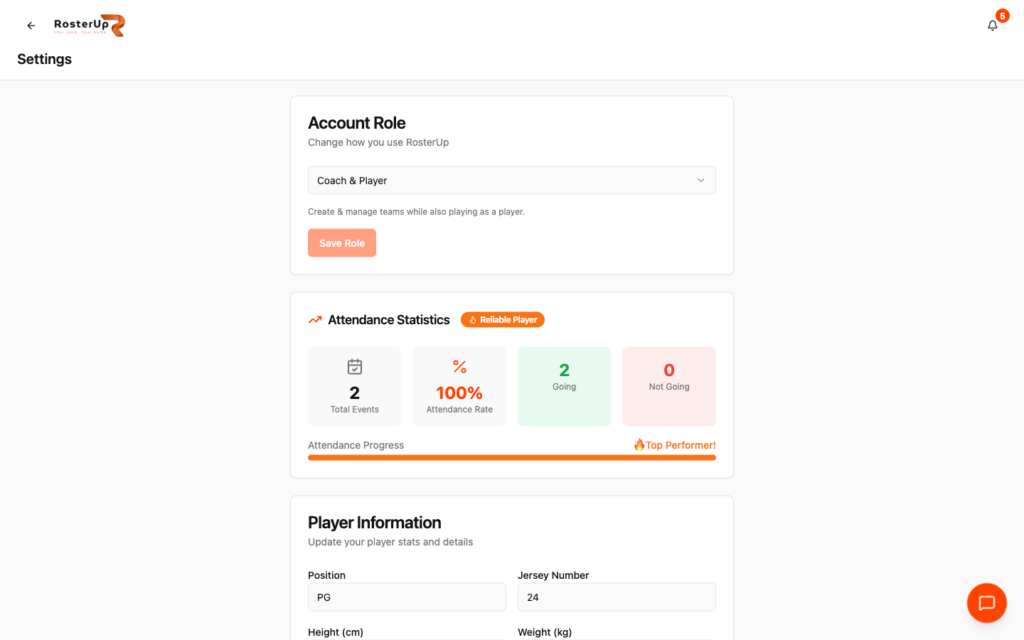
Turning up is tracked, and it counts for something.
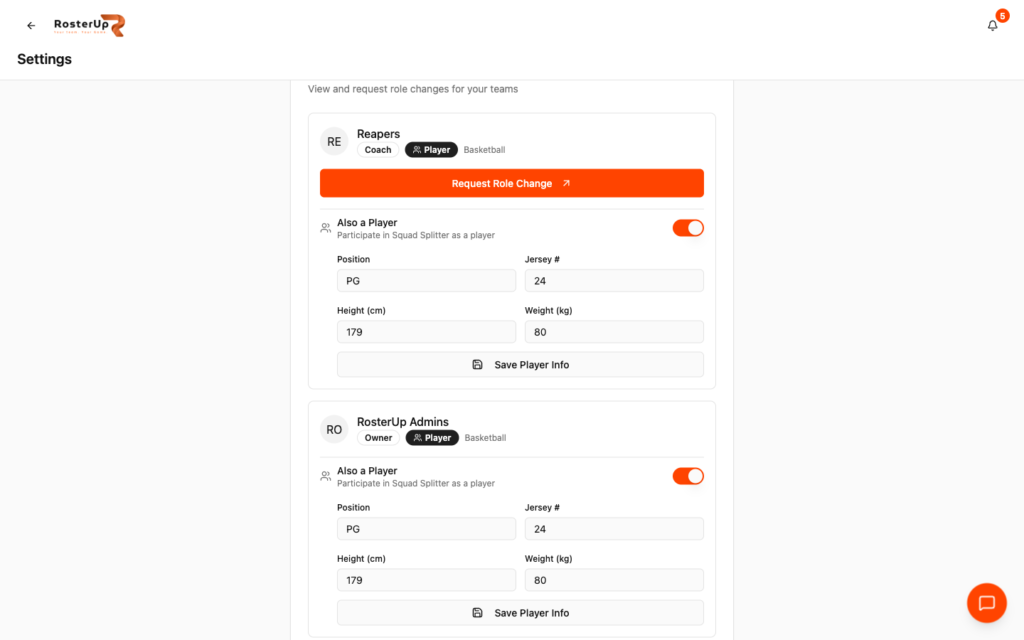
A different number and position in every team, if that is how you play.
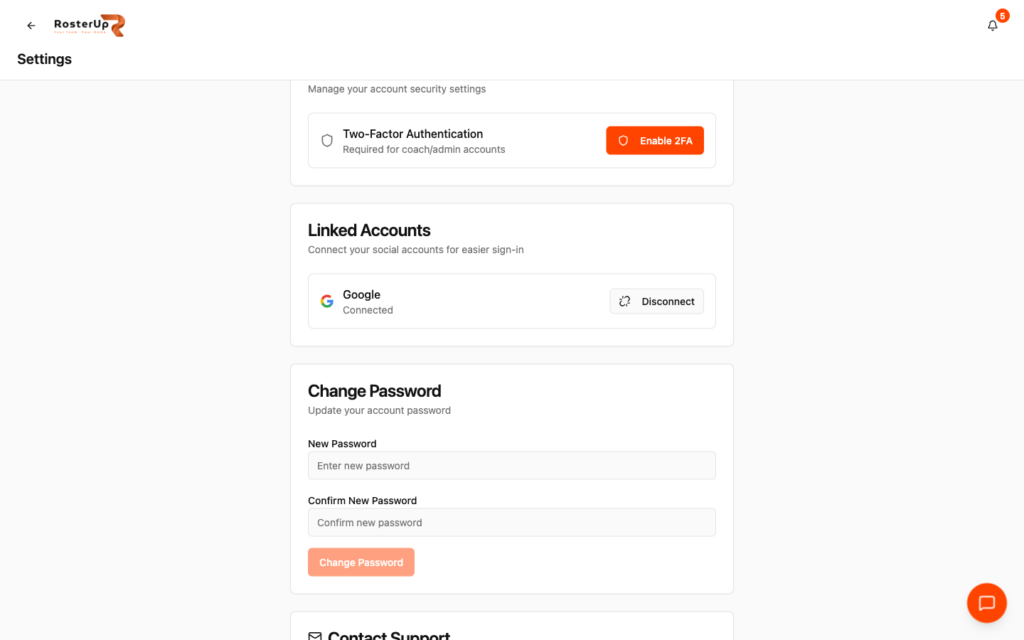
Coaching accounts can delete a team. Protect them accordingly.
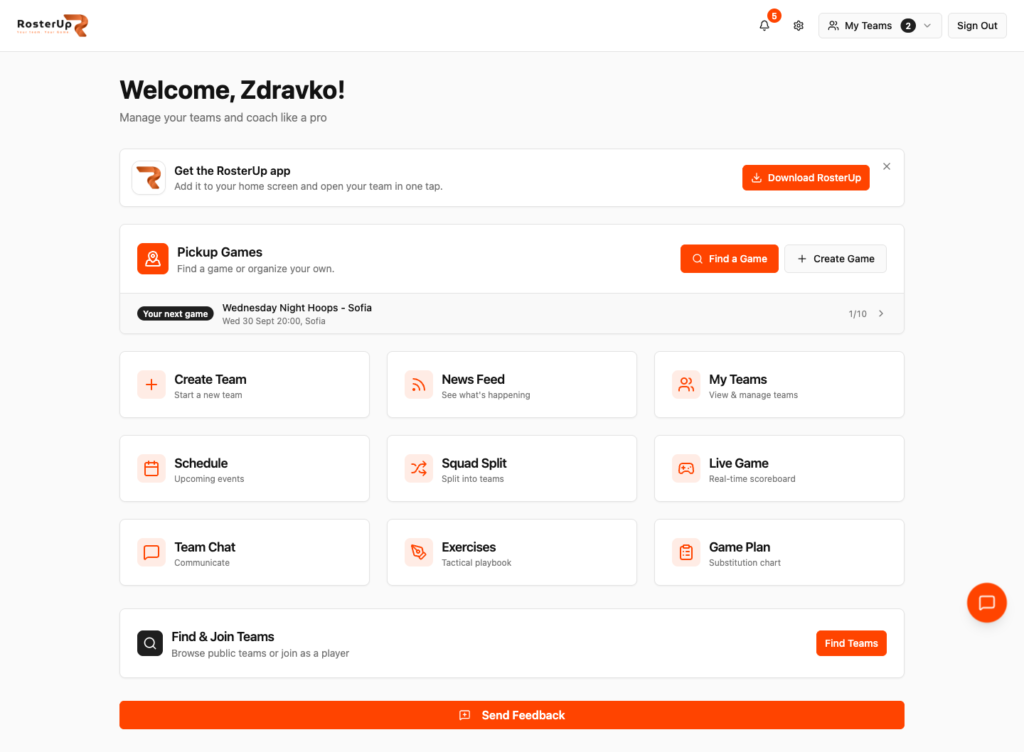
Every tool, one click from the home screen.
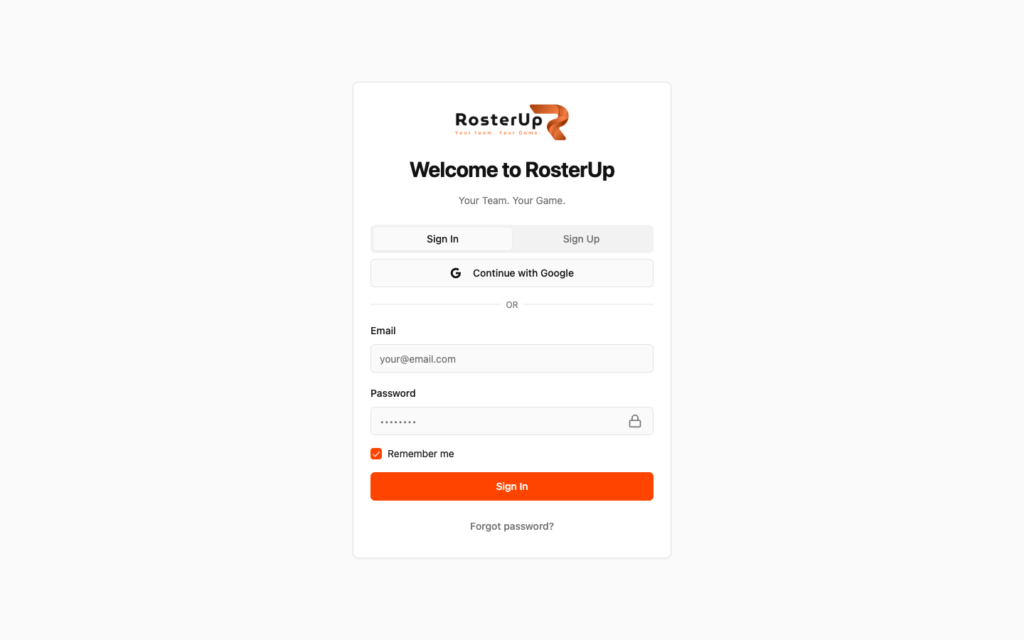
Google, or an email and password. — ## Gaps to re-capture later – The PWA install instructions dialog. The install button triggers the browser’s own install prompt, which did not appear in the automated browser. NEEDS VERIFICATION of the iOS instructions dialog in particular. – RosterUp running as an installed app with no browser chrome – the single most valuable missing image for this page. – The Teams tab quick-switch popover open in the mobile navigation. – The two-factor authentication setup flow. – The session timeout warning.
Who it helps
Both sides of the team sheet.
For coaches and managers
Your account is the thing that holds several teams together. My Team Roles shows every team and role in one view, so a coach who owns one team and plays in another is not managing two logins. Two-factor authentication matters here: a coaching account can delete a team, so it is worth protecting.
For players
Your details are entered once and follow you. You control whether your number is visible. Your attendance record is yours, and it is evidence when you want more minutes or a move up an age group. And the app on your home screen means checking Thursday’s time is one tap, not a browser search.
Wherever you are
Built for the sideline, shared with a link.
On the phone
This is the section where the mobile story belongs. RosterUp is mobile-first throughout: a six-tab bottom navigation that persists across the app, a Teams tab that opens a quick-switch list of your teams, an unread badge on Chat, bottom sheets instead of dropdowns for filters and tool palettes, and 44-pixel touch targets throughout. Installed to the home screen, it launches full screen with no browser chrome.
Sharing and public access
Accounts and settings are private. The account’s public surface is the player profile, which is visible to other signed-in RosterUp users.
In practice
How real teams use it.
A coach turns on two-factor authentication because their account can delete a team.
A player hides their phone number from teammates but keeps it on file so the coach can reach them.
A coach flips Also a Player so they appear in the Thursday scrimmage split.
A player asks to move from Player to Captain with Request Role Change.
A whole squad installs RosterUp to their home screens at the first team meeting.
A user reports a bug with a screenshot from inside the app rather than hunting for an email address.
Why not just a group chat and a spreadsheet?
A chat group has no account, so there is nothing to secure, nothing to carry between teams and nothing to control. A spreadsheet has no identity at all. A native app store download is a bigger commitment than most amateur teams will make; a progressive web app installs from the browser in two taps and behaves the same way afterwards.
Questions
Frequently asked.
Is there a RosterUp app?
Yes. RosterUp installs to your phone’s home screen from the browser and opens full screen, with no app store download.
How do I install it?
The dashboard shows a “Get the RosterUp app” card, and Settings carries the same install option with instructions for your device.
How do I sign in?
With a Google account or with an email and password. There is a Remember me option and a password recovery flow.
Does RosterUp support two-factor authentication?
Yes, and it is flagged as required for coach and admin accounts, because those accounts can manage and delete teams.
Can I hide my phone number from my teammates?
Yes. Settings has a “Show phone to teammates” switch. Pickup game organisers can see a participant’s number for their own game only.
Can my position and jersey number be different in different teams?
Yes. My Team Roles holds player information per team.
I am a coach - can I also be picked as a player?
Yes. The “Also a Player” switch makes you selectable in Squad Splitter and Game Plan rosters.
Can I ask to change my role in a team?
Yes, with Request Role Change in Settings.
Where can I see my attendance record?
In Settings, under Attendance Statistics – total events, attendance rate, Going and Not Going counts, plus Reliable Player and Top Performer badges.
How do I report a problem?
Settings has a support form with categories for Bug Report, Feature Request, Billing and Other, and you can attach screenshots.
How big can my profile picture be?
Up to 10MB. Images are cropped in-app and optimised to WebP automatically.
Next
Works with the rest of RosterUp.
Player Profiles
One sports profile for every team you play for, with the record of how often you turn up.
Read more
Team Management
One team profile that holds your players, your staff and exactly who is allowed to do what.
Read more
Schedule and RSVP
Create trainings, games and meetings in seconds. Players answer with one tap and you see a number.
Read more
Get started
Your Team, One Tap From Your Home Screen
Free to start. No sales call. Create your team and bring the squad in today.